Glimshelf Guide
Get started with Glimshelf.
Try the included sample, connect a library, prepare a trip, or solve a problem. These instructions use the labels in the current public beta.
Updated September 9, 2026
On this page
01
Start or connect
Choose a way to begin.
Try the sample
Glimshelf includes Rainbow Potions, Episode 2 of Pepper & Carrot. Open it by choosing Try sample comics on the first screen. Five story pages and the original credits are included. Read them offline, resume where you stopped, and remove the book later from Manage Servers.
Pepper & Carrot is by David Revoy, shared under CC BY 4.0. See the episode source and full credits.
Add local books
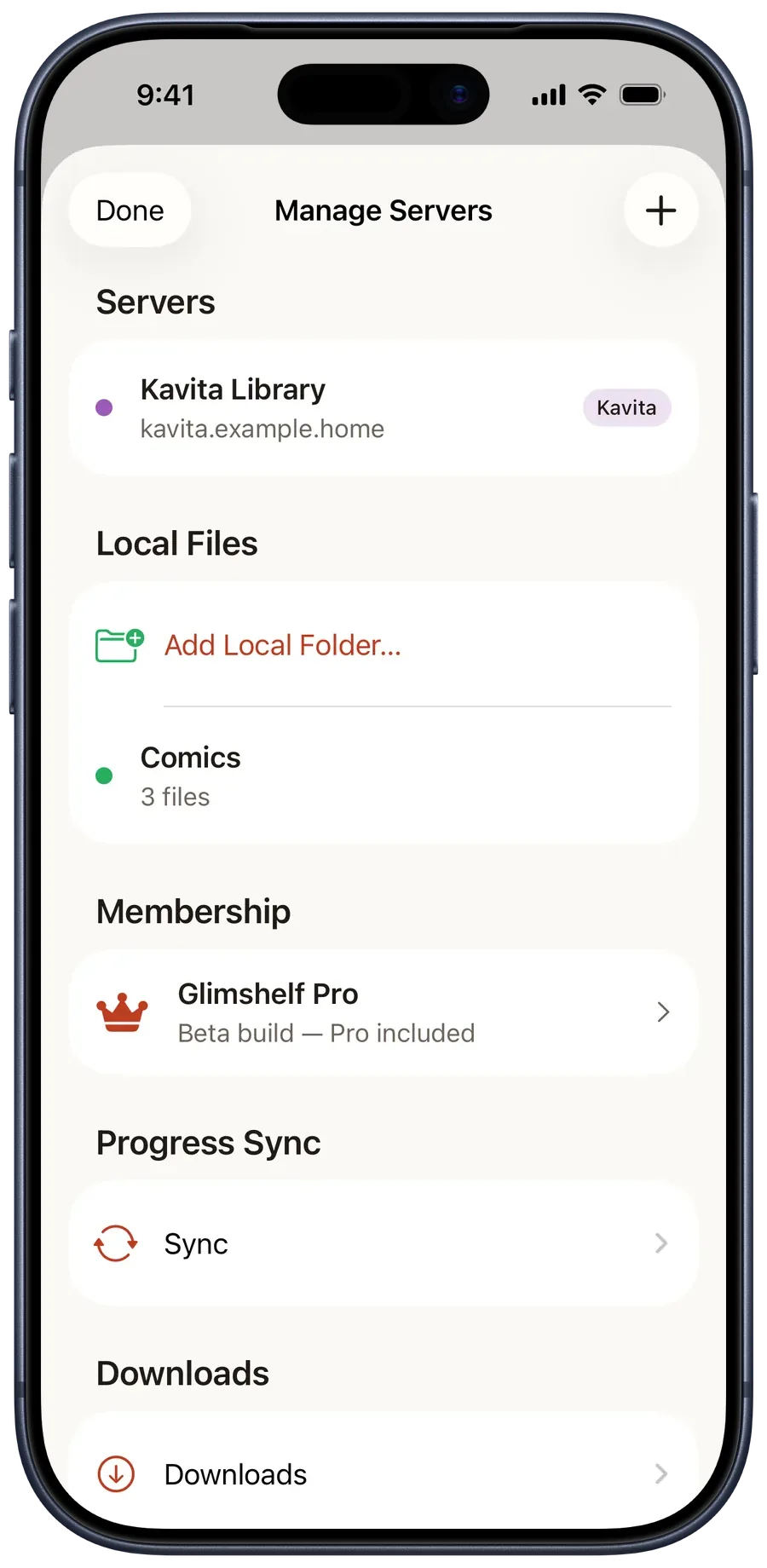
Open Settings, Manage Servers, then choose Add Local Folder under Local Files. Pick a folder containing CBZ, CBR, CB7, PDF, or EPUB books. Select the folder itself, rather than an individual file. Glimshelf reads the books from that folder without uploading a copy.
Connect a server
- 1Choose the server type
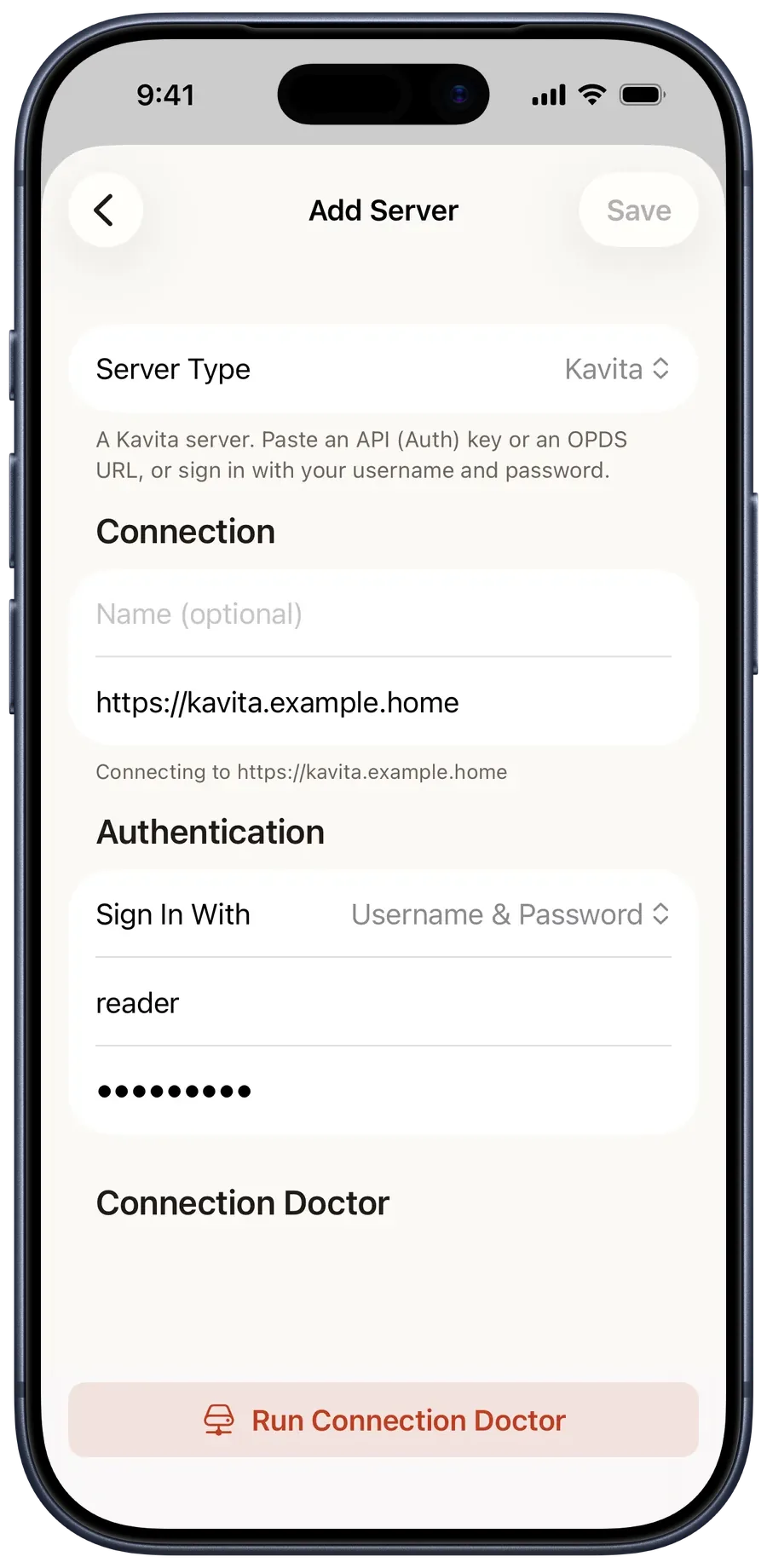
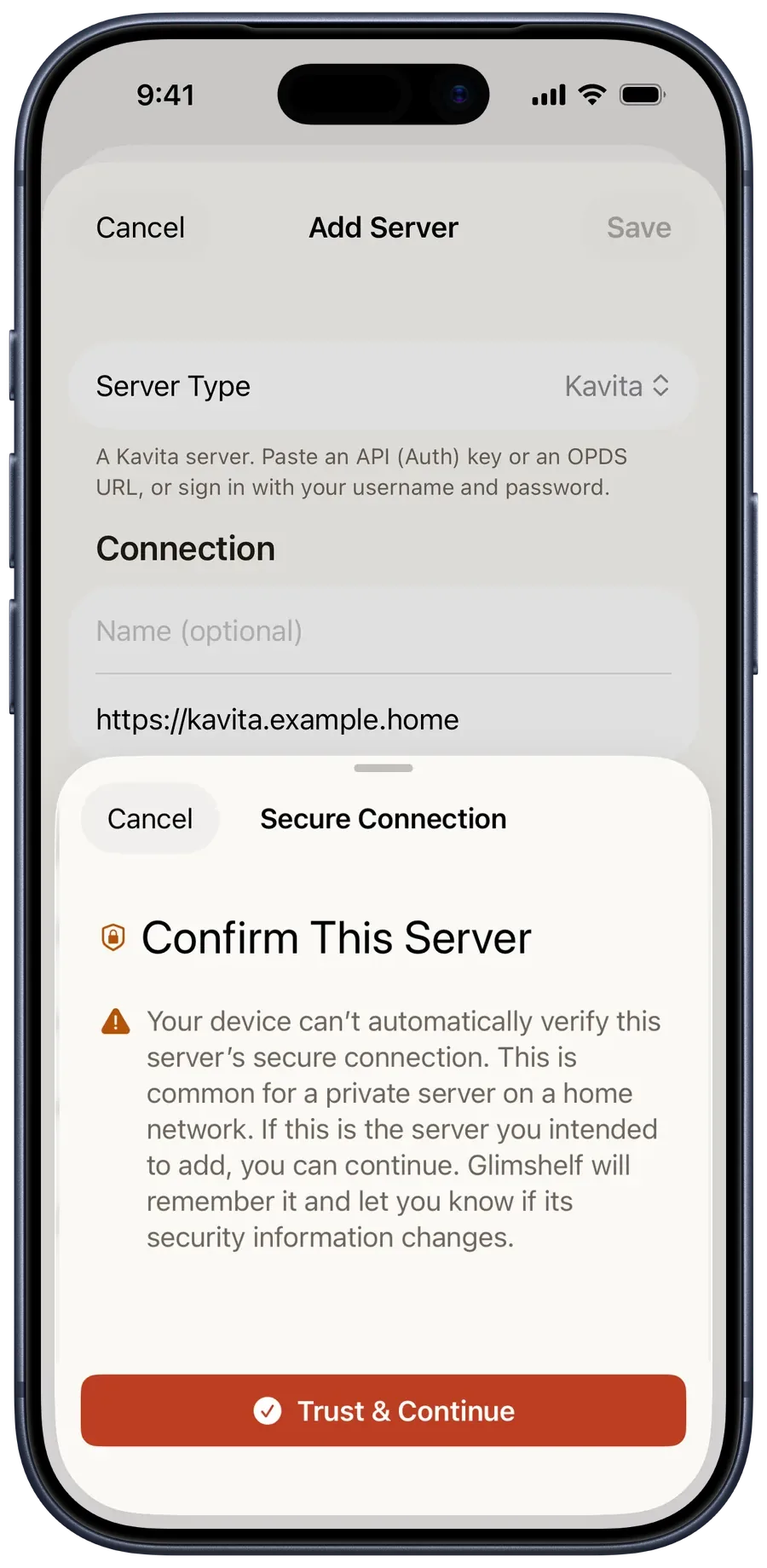
Open Settings, Manage Servers, then Add Server. Pick Komga, Kavita, or OPDS.
- 2Enter the base address
Use the address that opens the server, including HTTPS and any path prefix.
- 3Check the connection
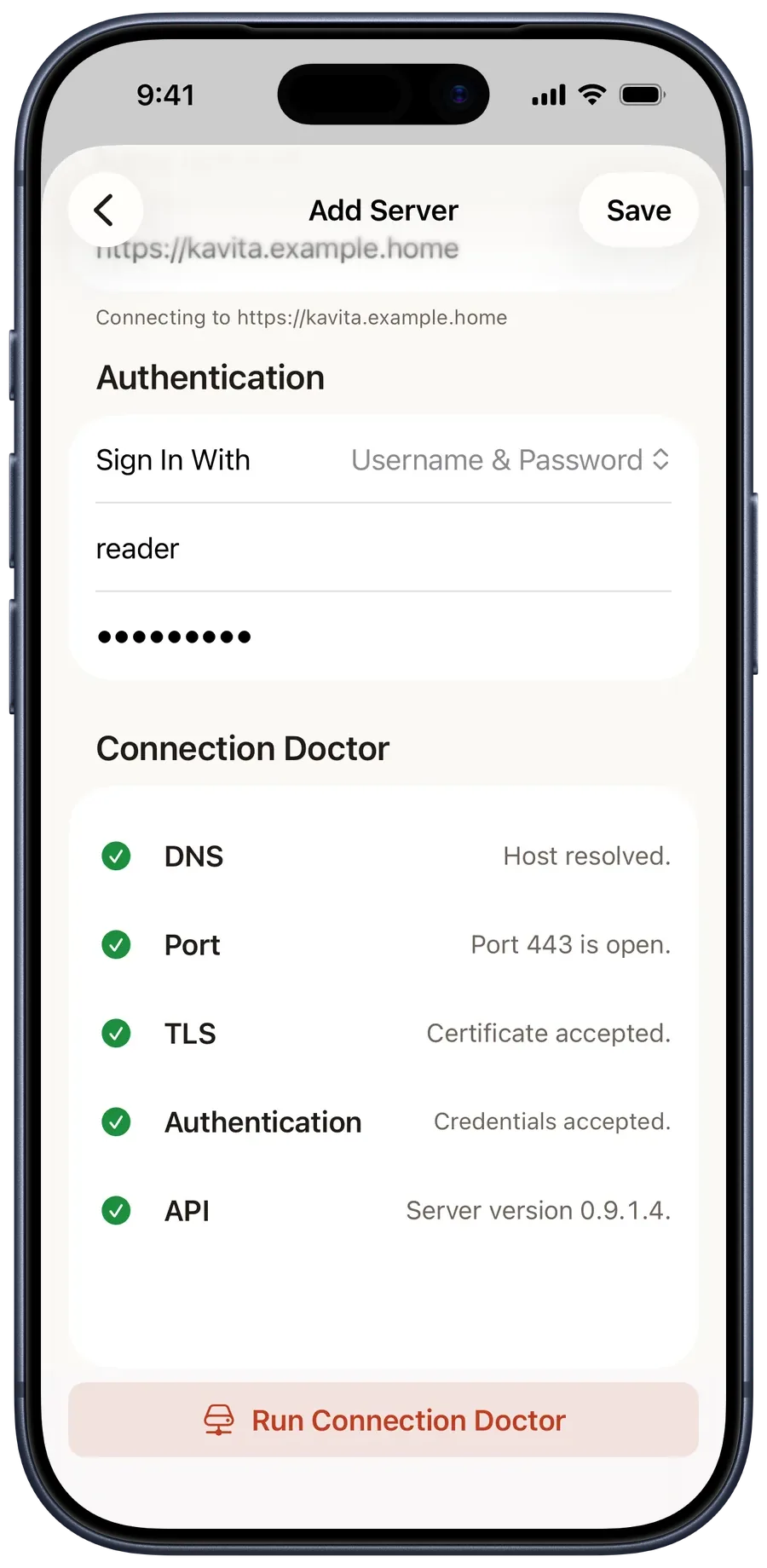
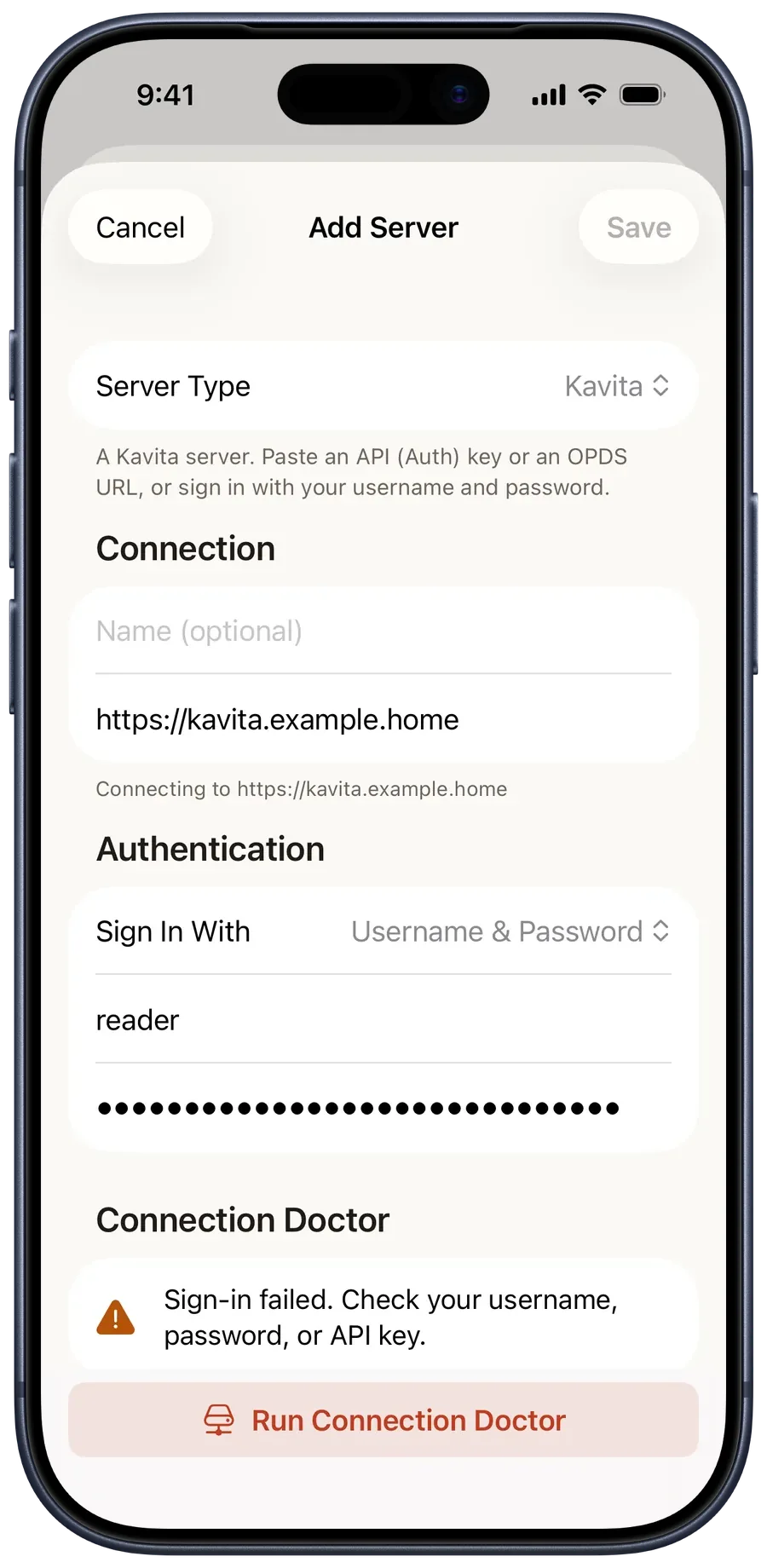
Connection Doctor checks DNS, port, TLS, authentication, and API before the first catalog sync.
Free includes unlimited Komga, Kavita and OPDS servers and unlimited local files. Pro adds unlimited server downloads. Server credentials stay in Apple’s Keychain.
See connection and source controls (3)
02
Find and resume
Continue from Home, or search the whole catalog.
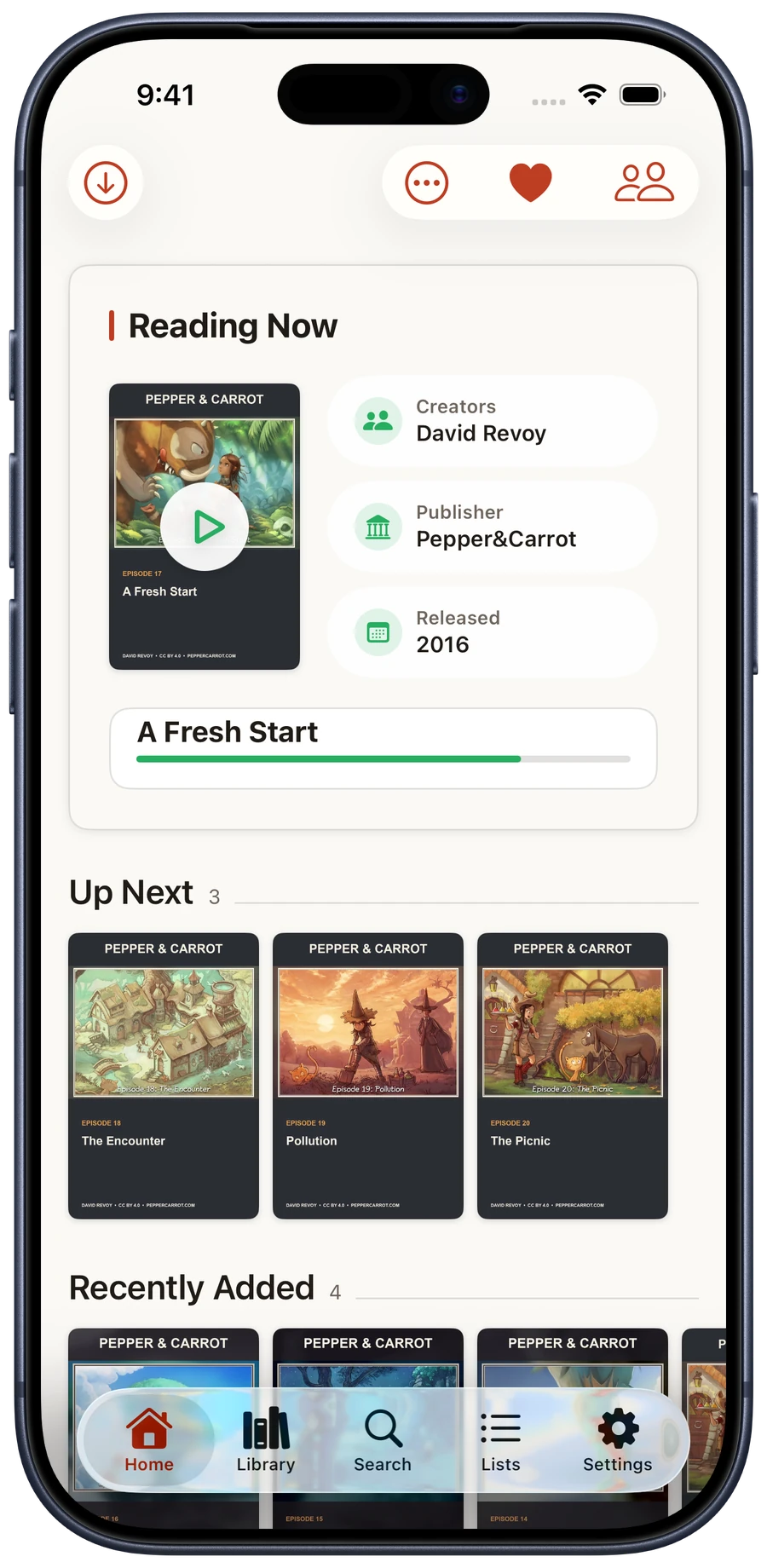
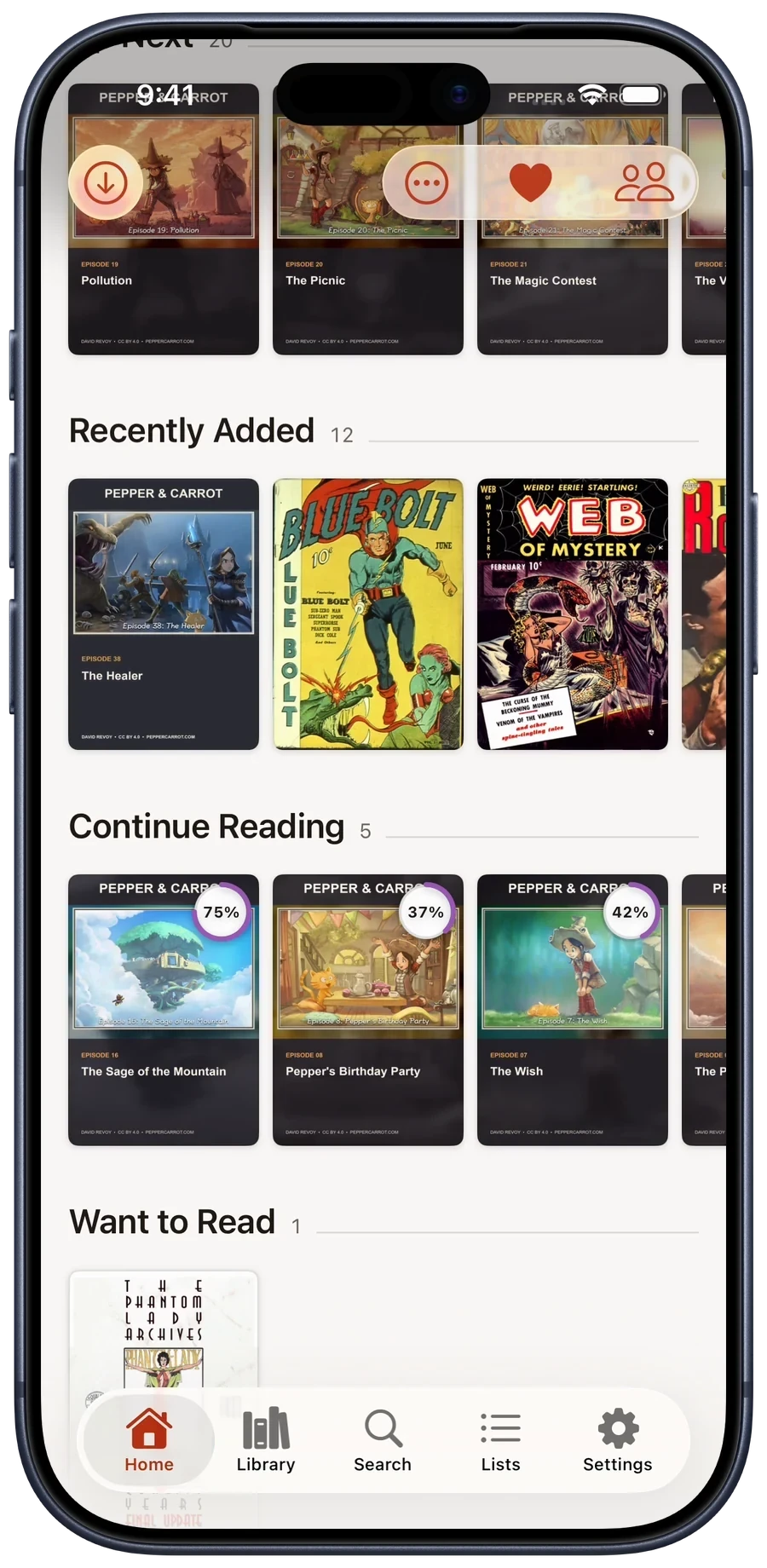
Home and Library
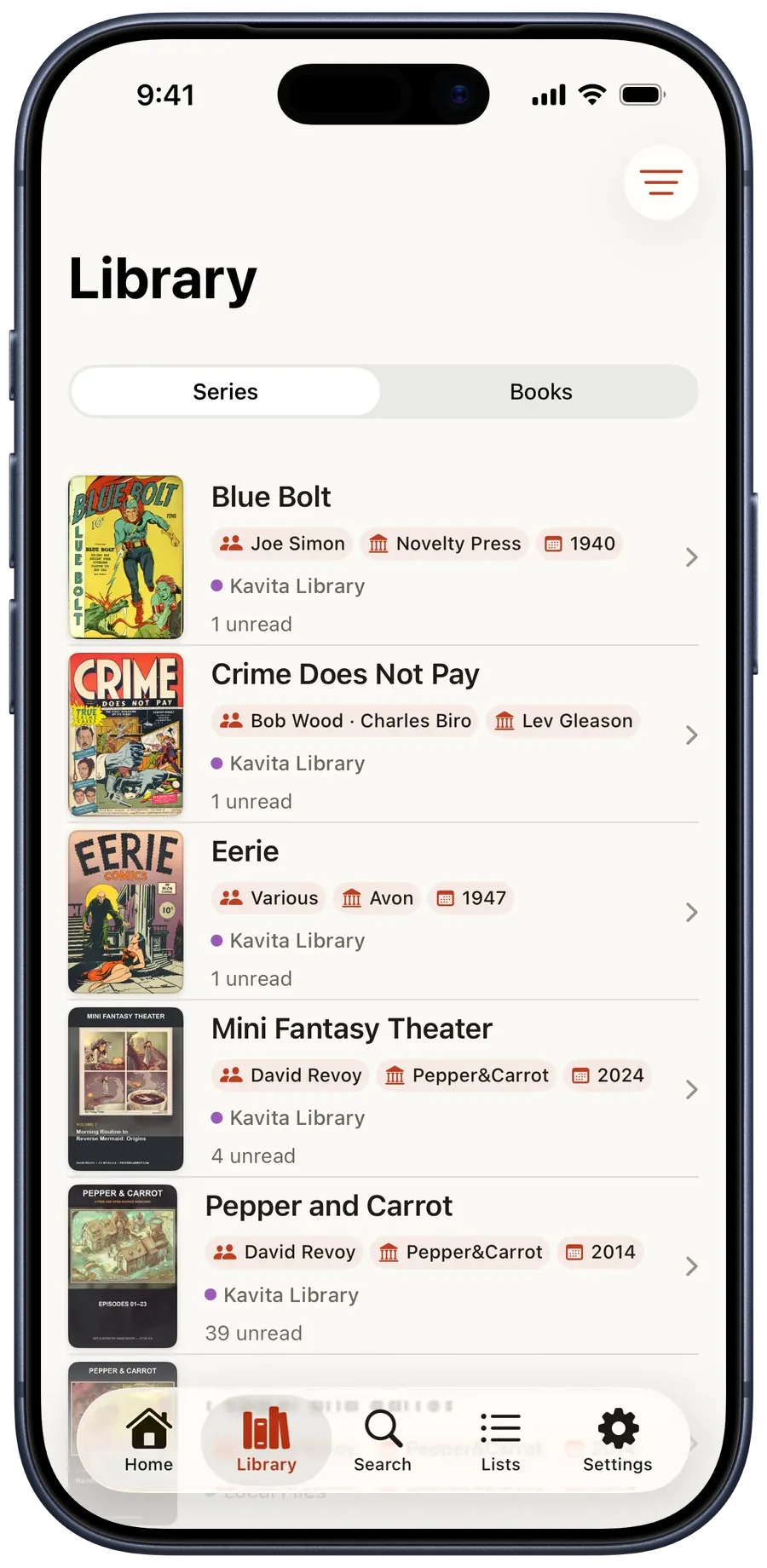
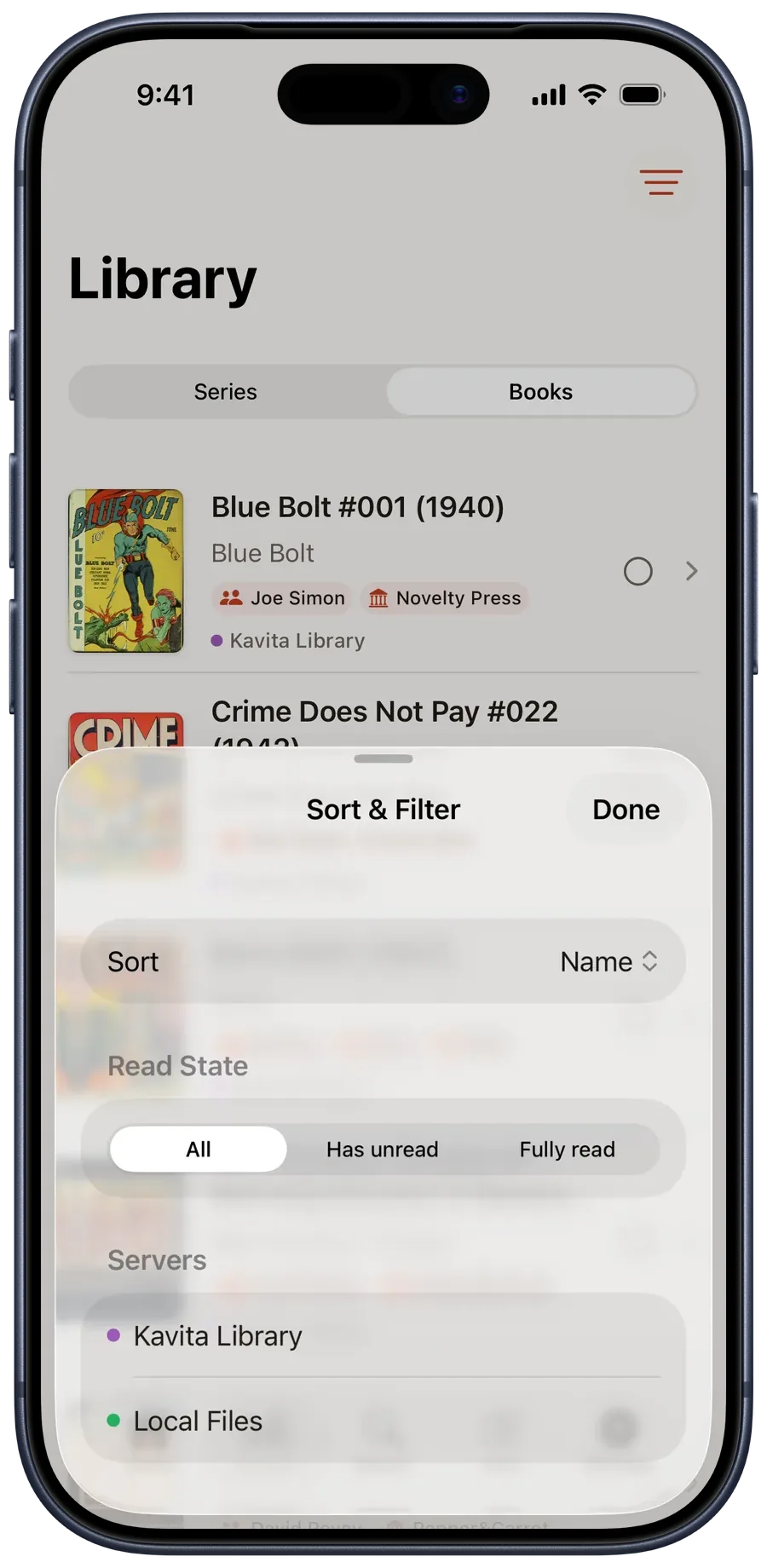
- Browse by series or book.At the top of Library, choose Series to group related books, or Books to see individual issues. If you have scrolled down the list, return to the top to find this switch.
- Resume from Reading Now.It opens the saved page for the active reader profile.
- Follow Up Next.It follows the series or reading list you are working through and disappears when there is no next book.
- Arrange Home.Press and hold a normal shelf title until the row lifts, then drag and release it. Up Next stays first and cannot be moved.
- Manage Home another way.Open the Home ⋯ menu, choose Manage Home, then tap Edit to reorder with drag handles. Press and hold a row for Show, Hide, and Move actions.
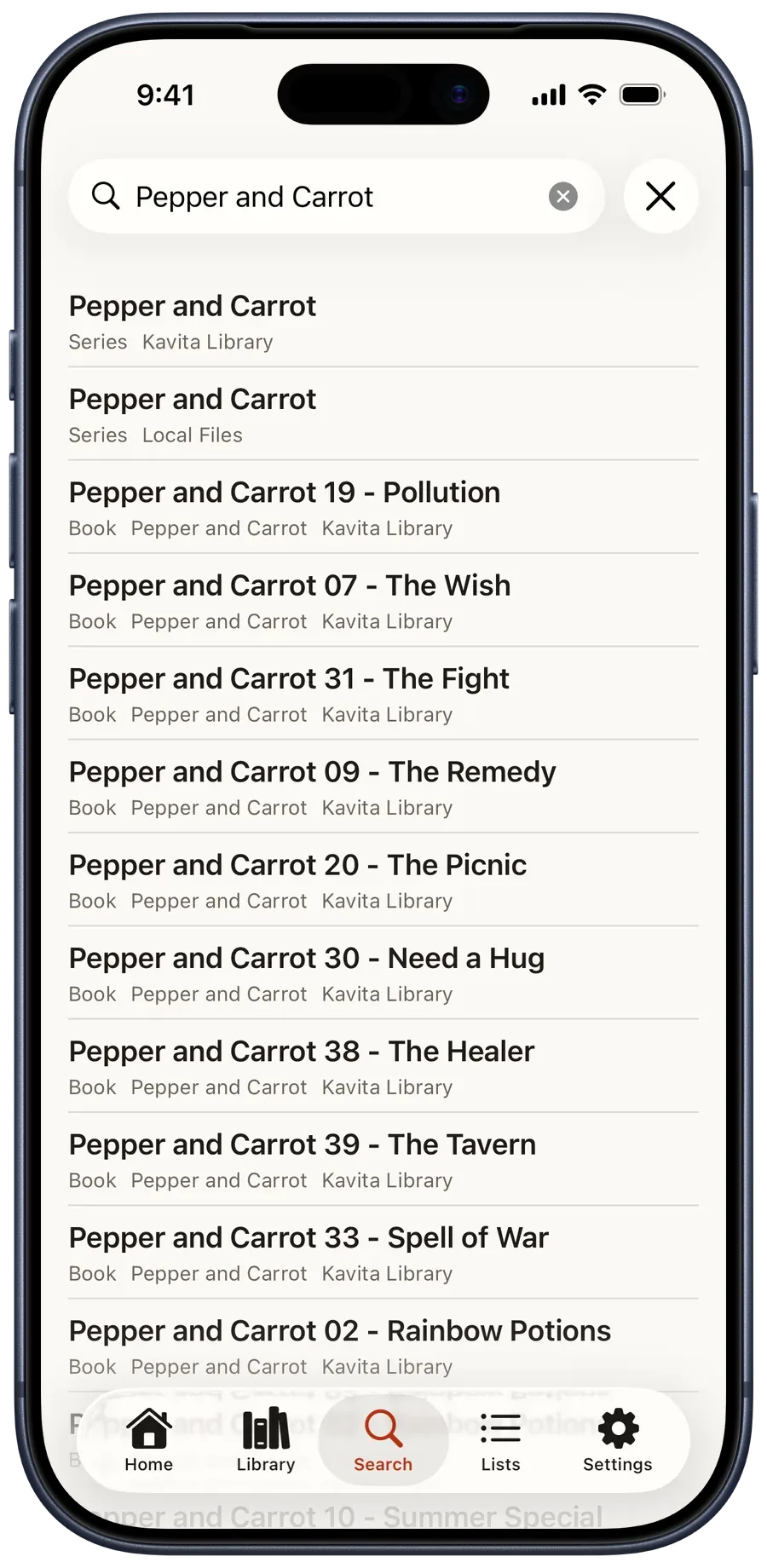
- Search by title.Results keep series and books separate. One search covers every connected server and identifies its source on Free.
Series and book details
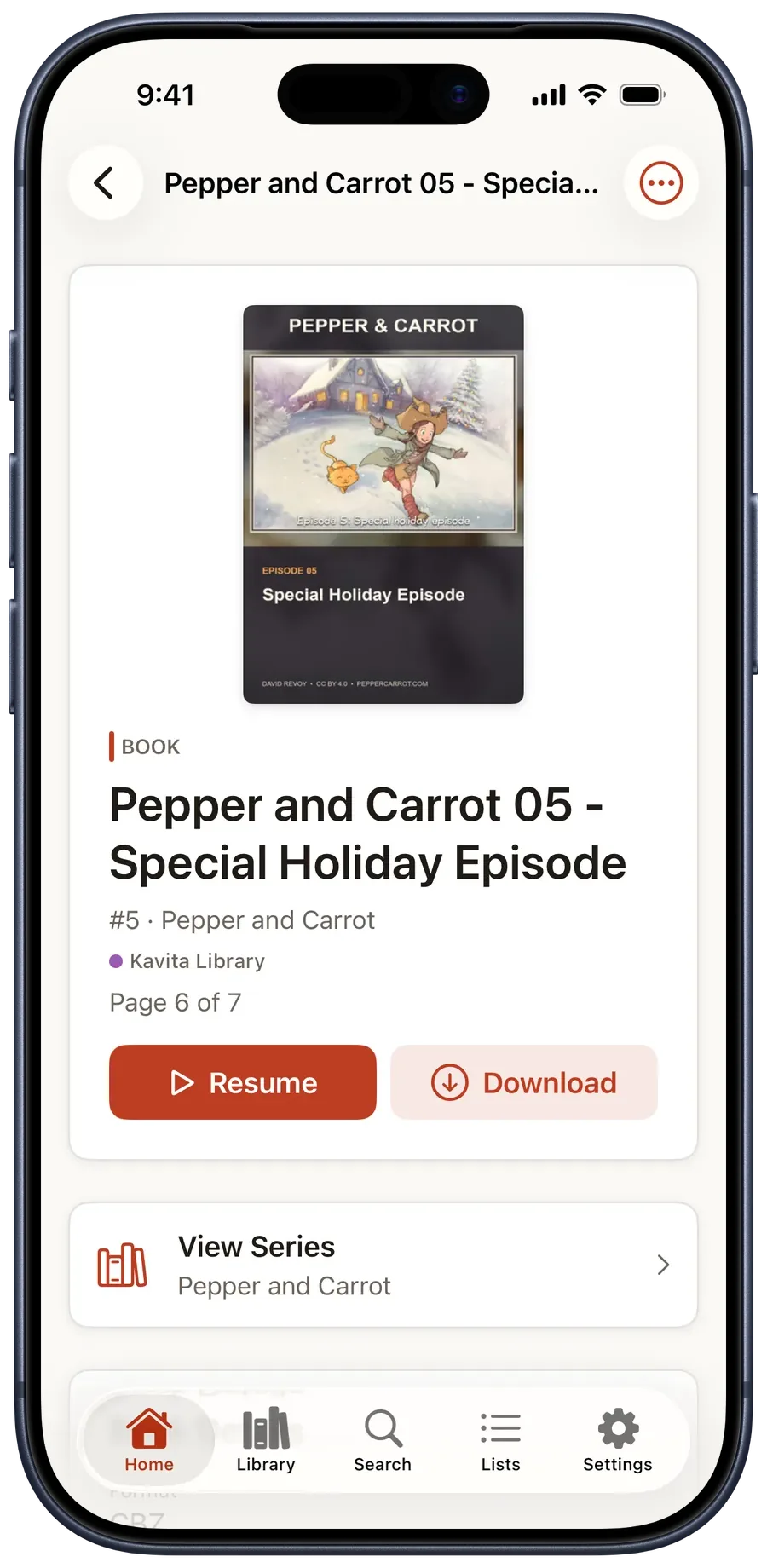
A series page groups its books. A book page shows its saved position, download control, and available actions.
See Home, Library, search, and book details (5)
03
Read your way
Set the controls for this book.
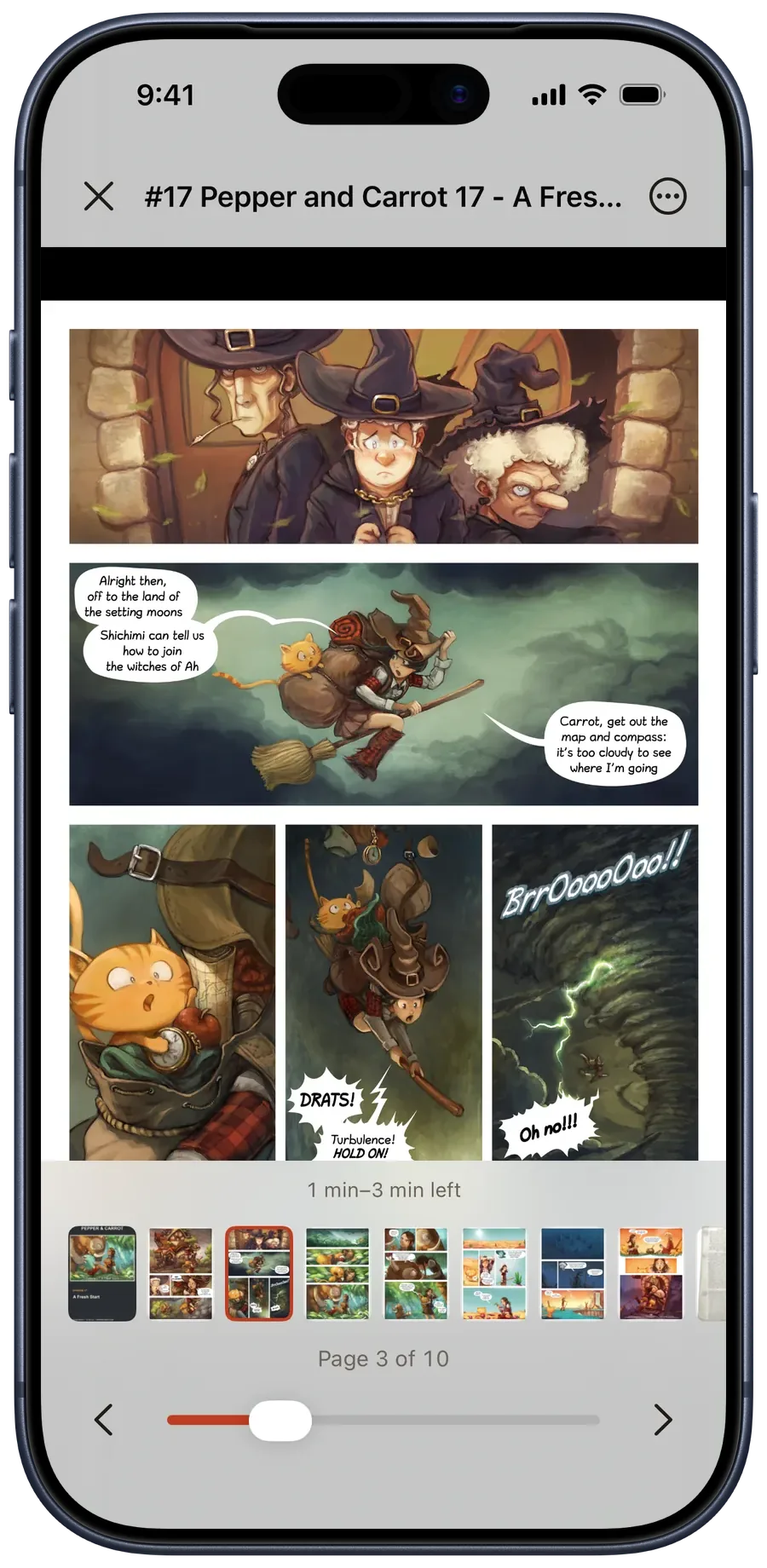
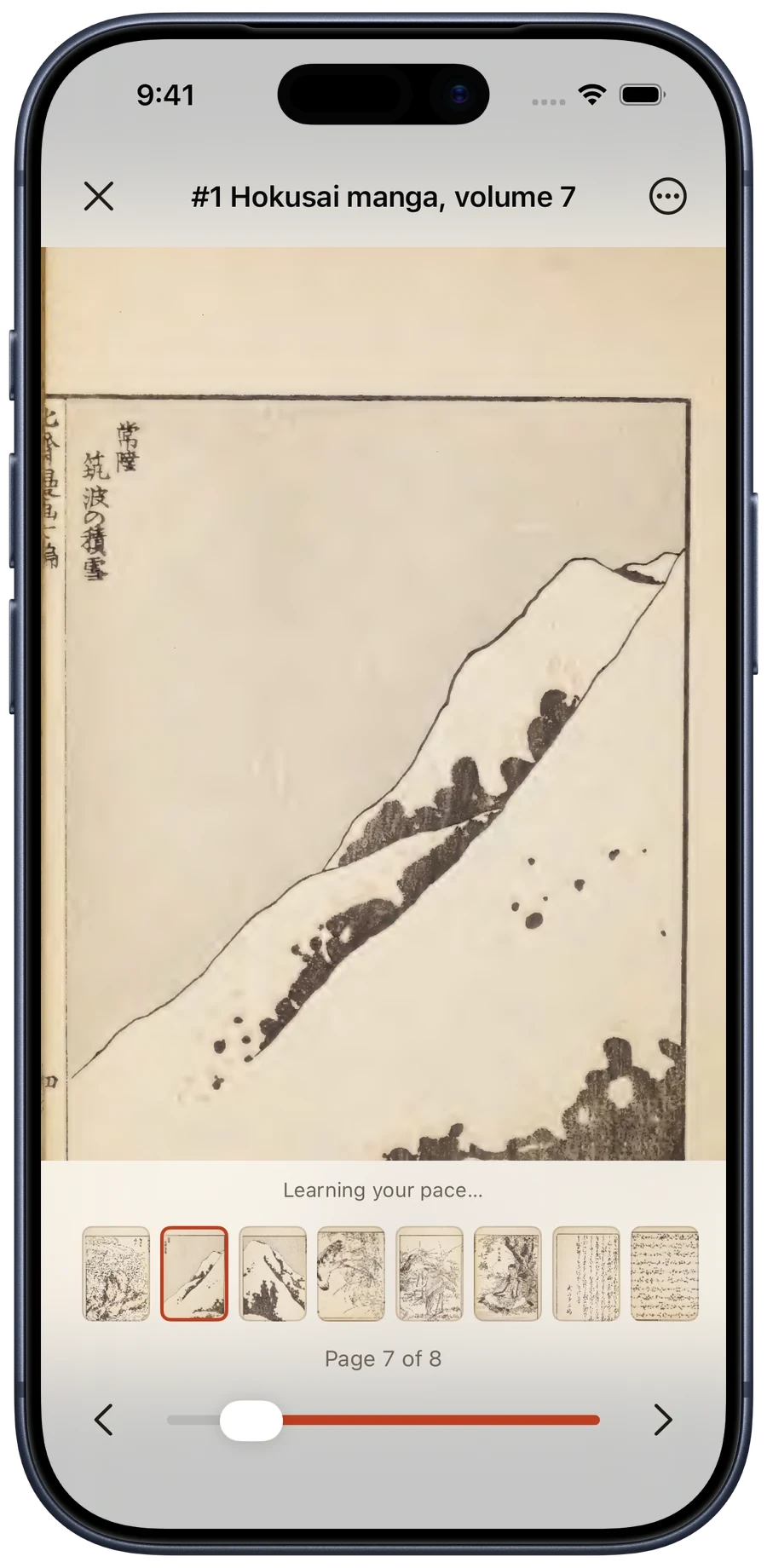
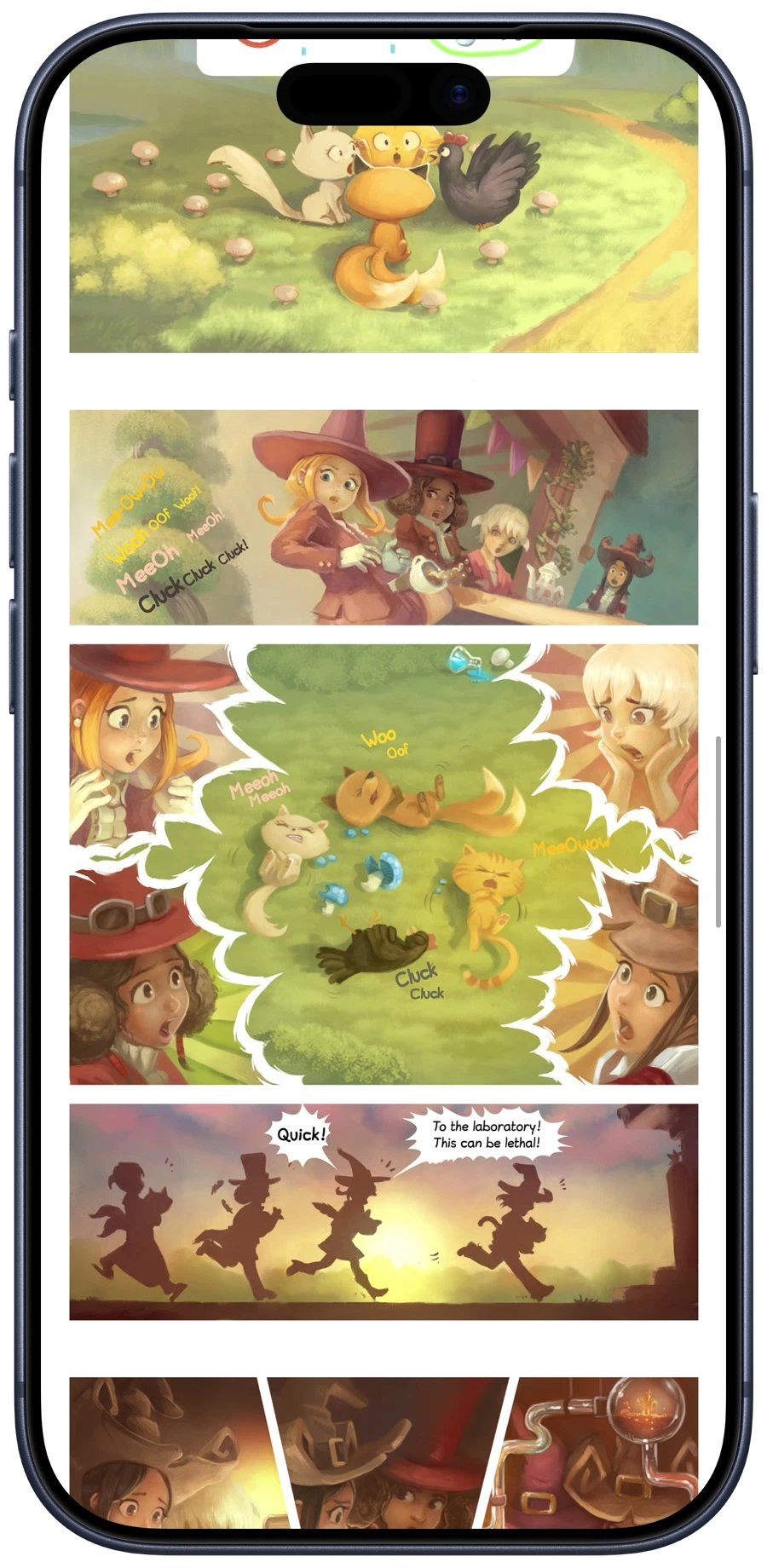
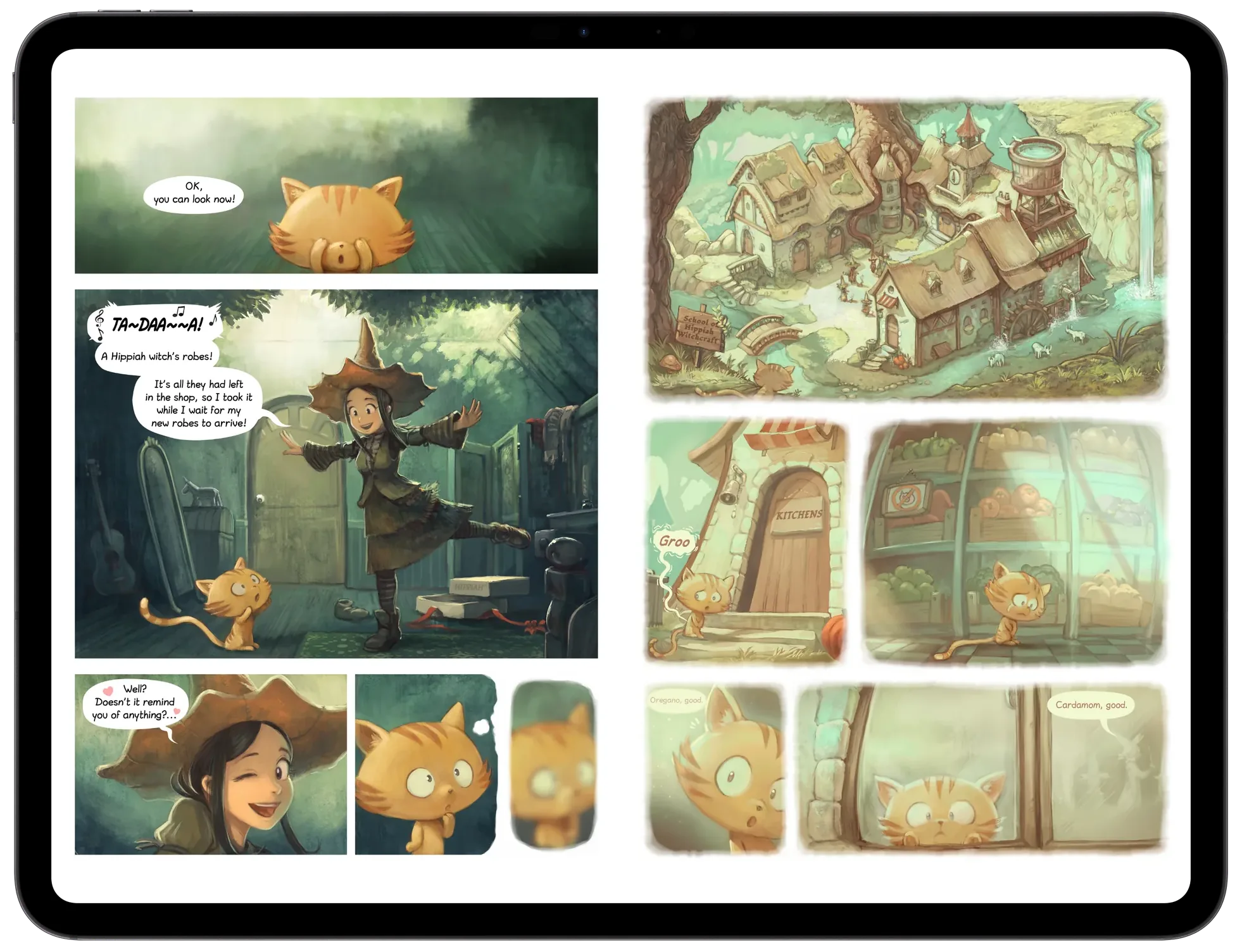
Tap the center of a comic or manga page to show the controls. Use the thumbnail strip to move farther through the book.
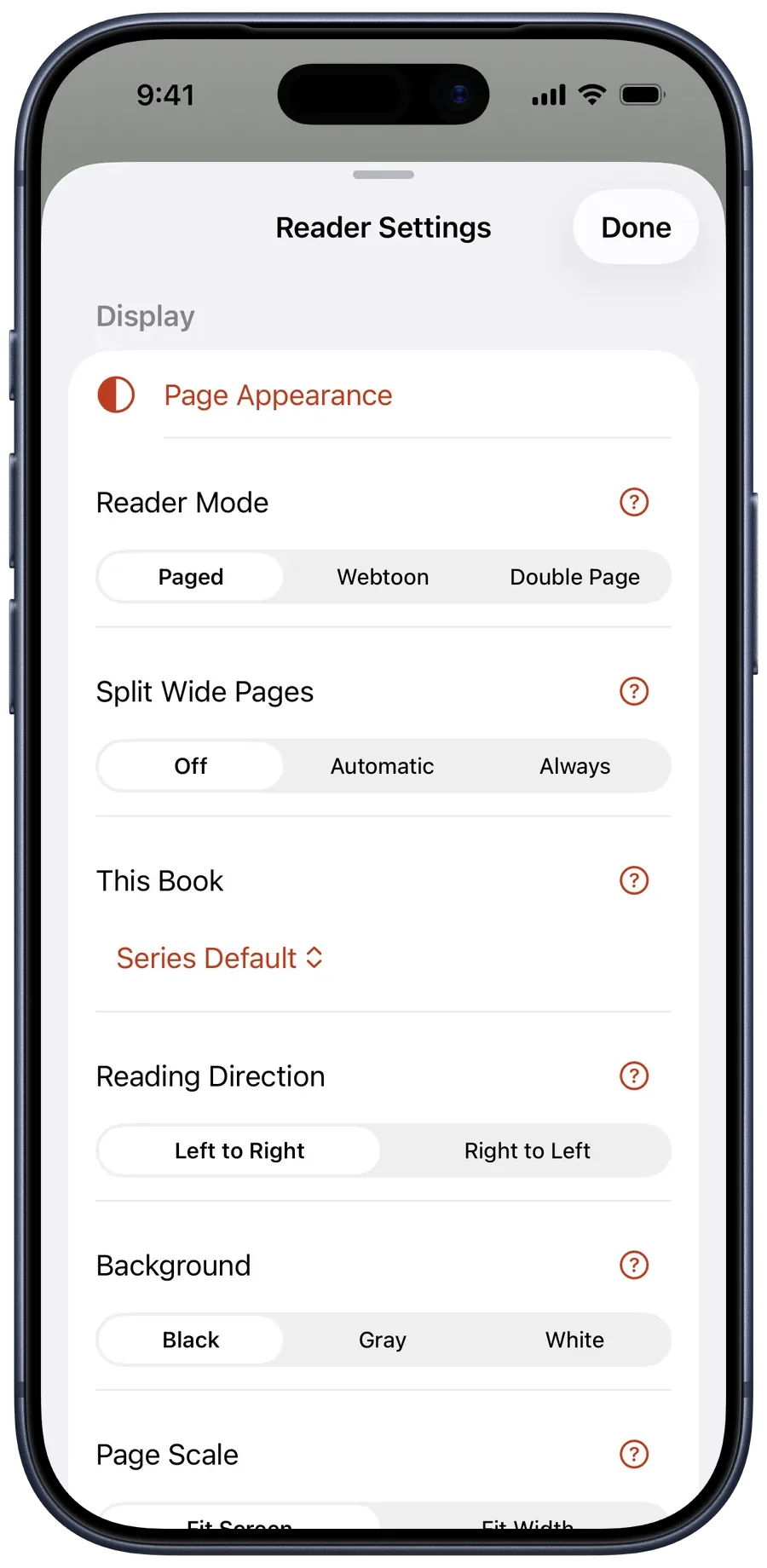
- Comics and mangaChoose Paged, Double Page, or Webtoon. Set Left to Right or Right to Left, change scaling and background, crop margins, and fix a mis-paired spread.
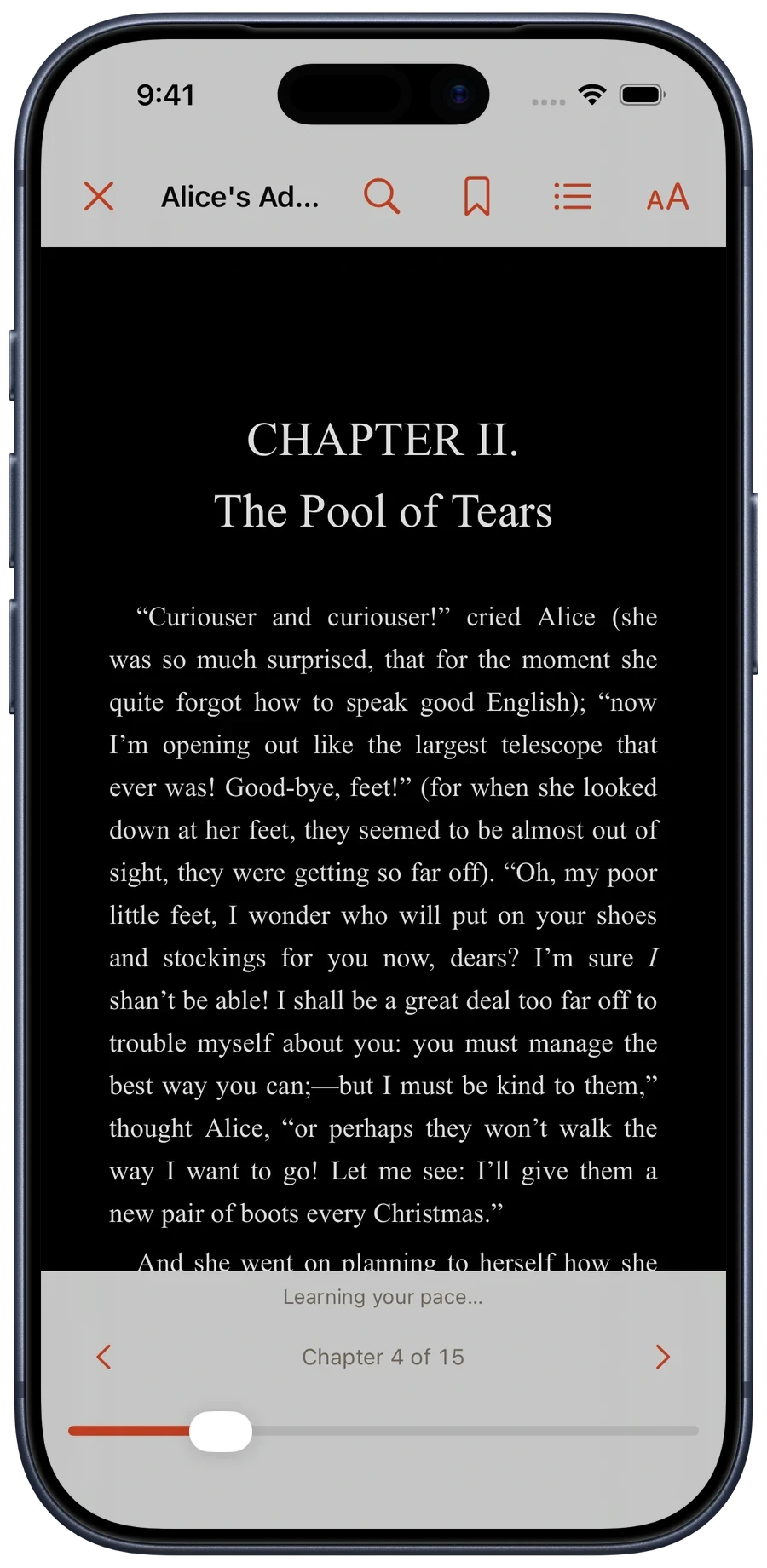
- EPUBUse the chapter list, follow links and footnotes, and change text appearance. Glimshelf restores the chapter, location, and appearance.
- Continue to the next bookTurn on Continue to Next Book to move into the next title without returning to the library.
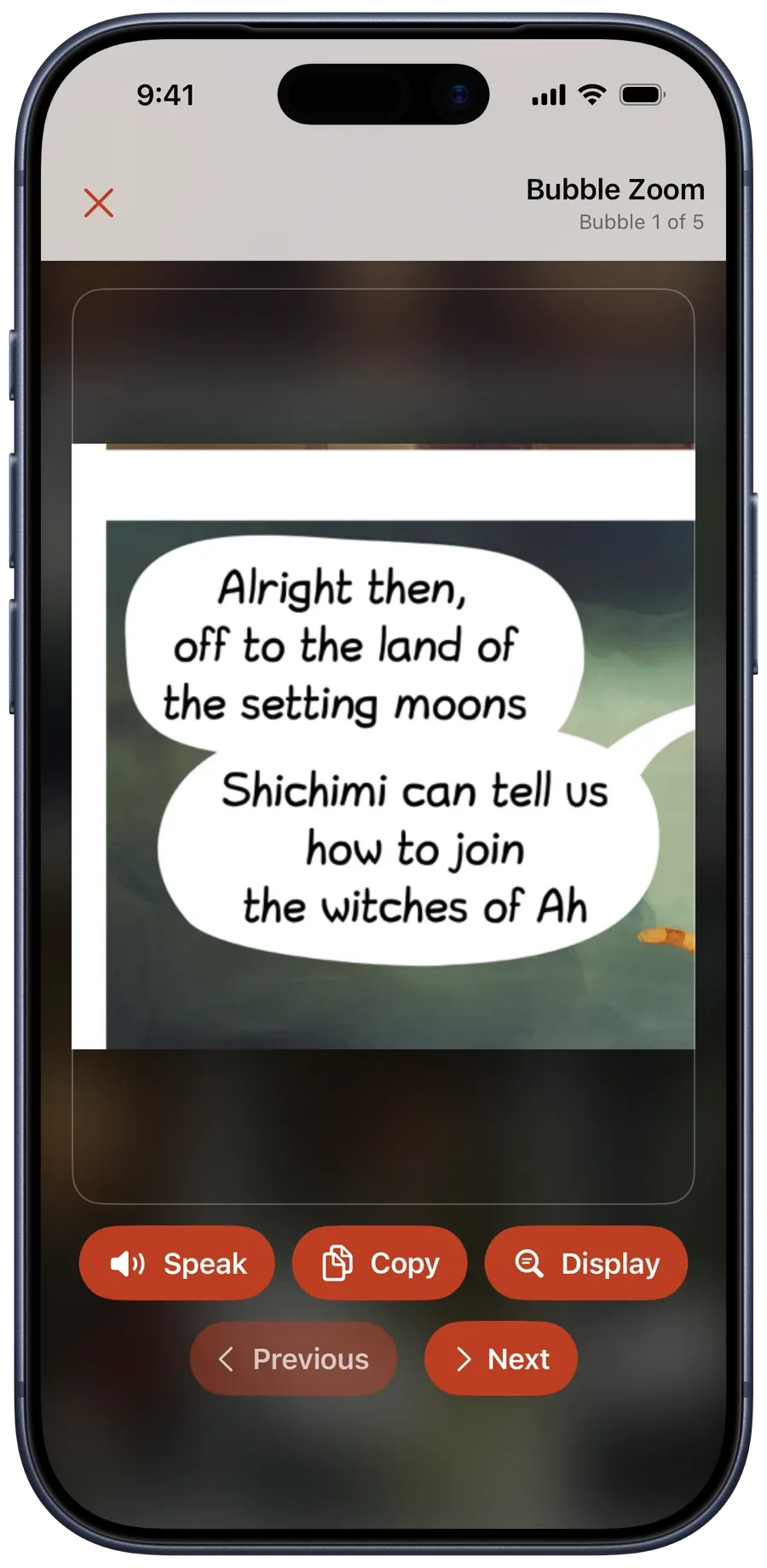
- Bubble ZoomWith Pro, step between recognized speech balloons at readable size, then Copy, Speak or Translate the recognized text on your device.
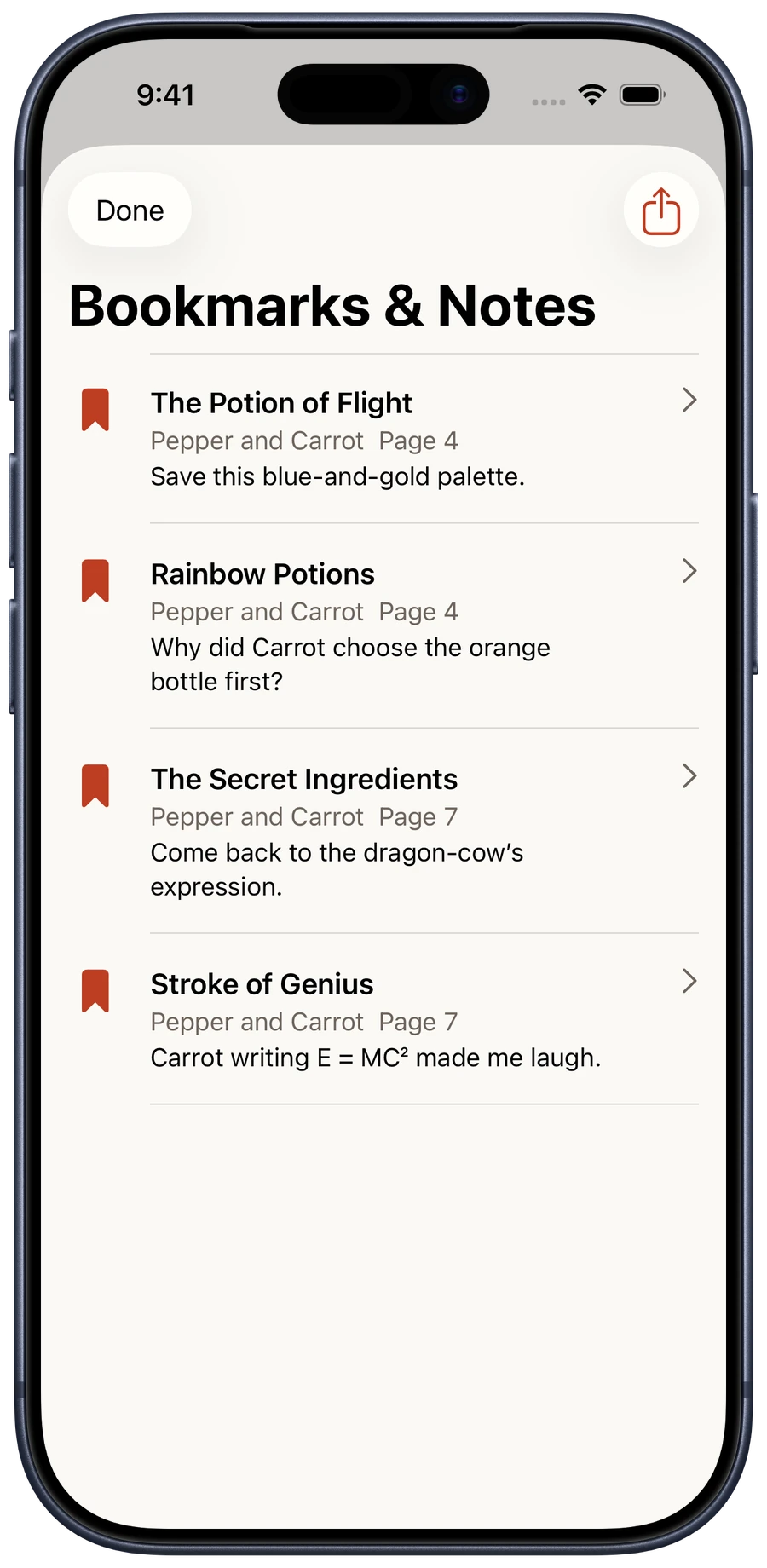
- Bookmarks and notesSave a page or EPUB location. Pro adds notes, the combined Bookmarks & Notes screen, and private iCloud sync.
See reader modes and reading tools (8)
04
Download for later
Check the files before you lose the network.
- 1Download a book
Use the download action on a book. Pro also offers Download Series, auto-next, keep rules, and storage controls.
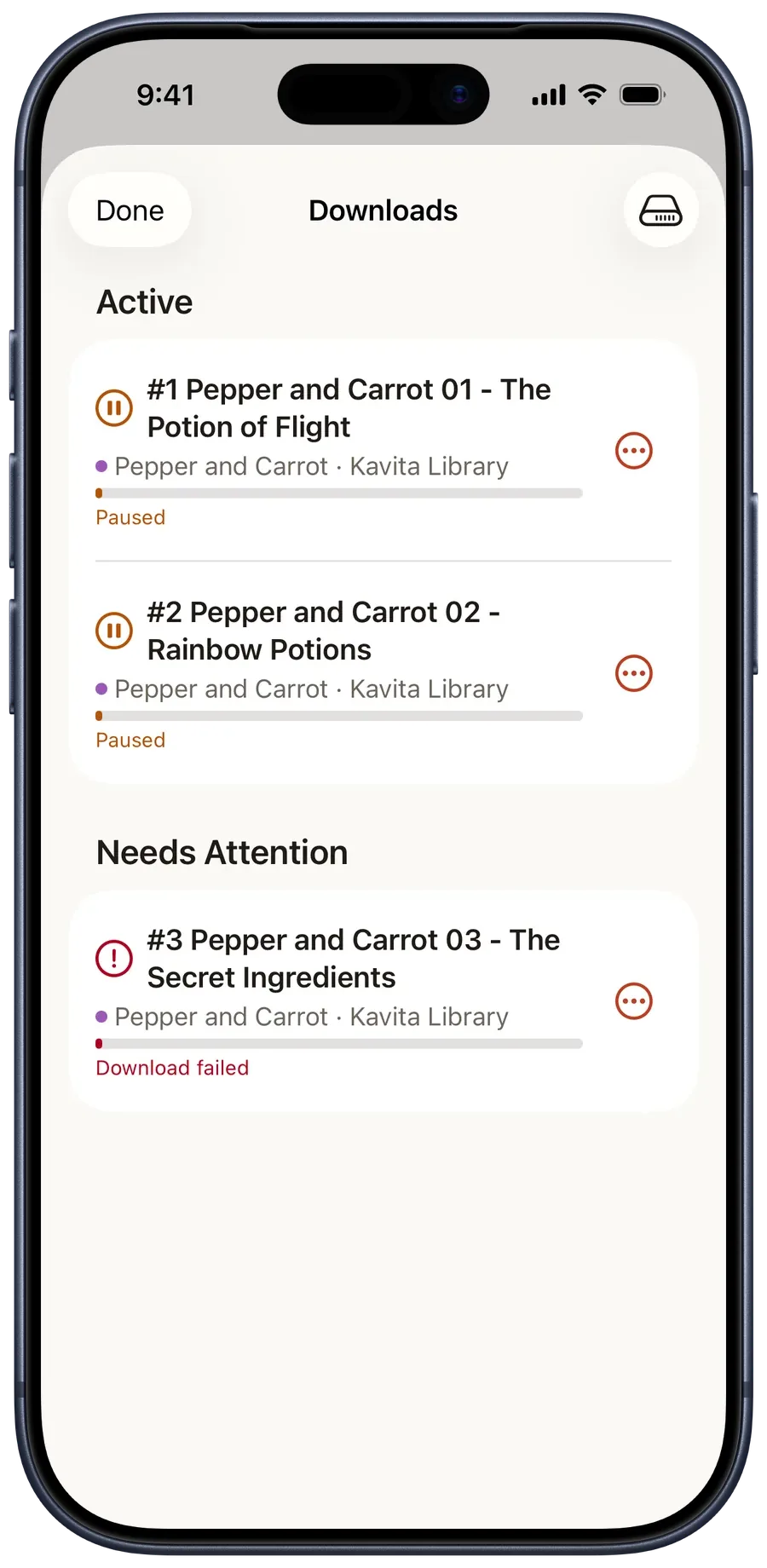
- 2Watch Downloads
Active shows waiting, downloading, paused, and retrying work. Needs Attention keeps a failed transfer visible.
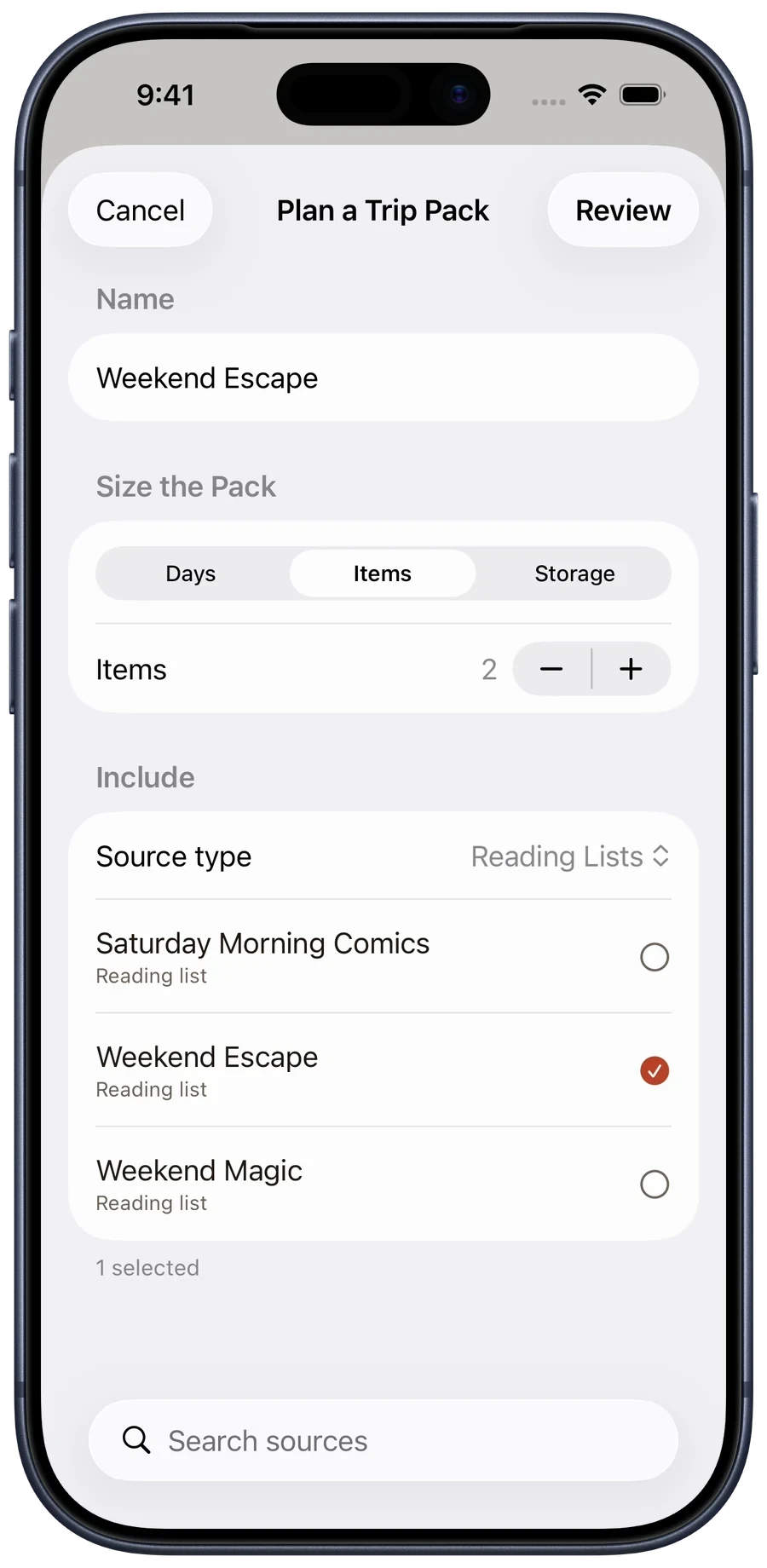
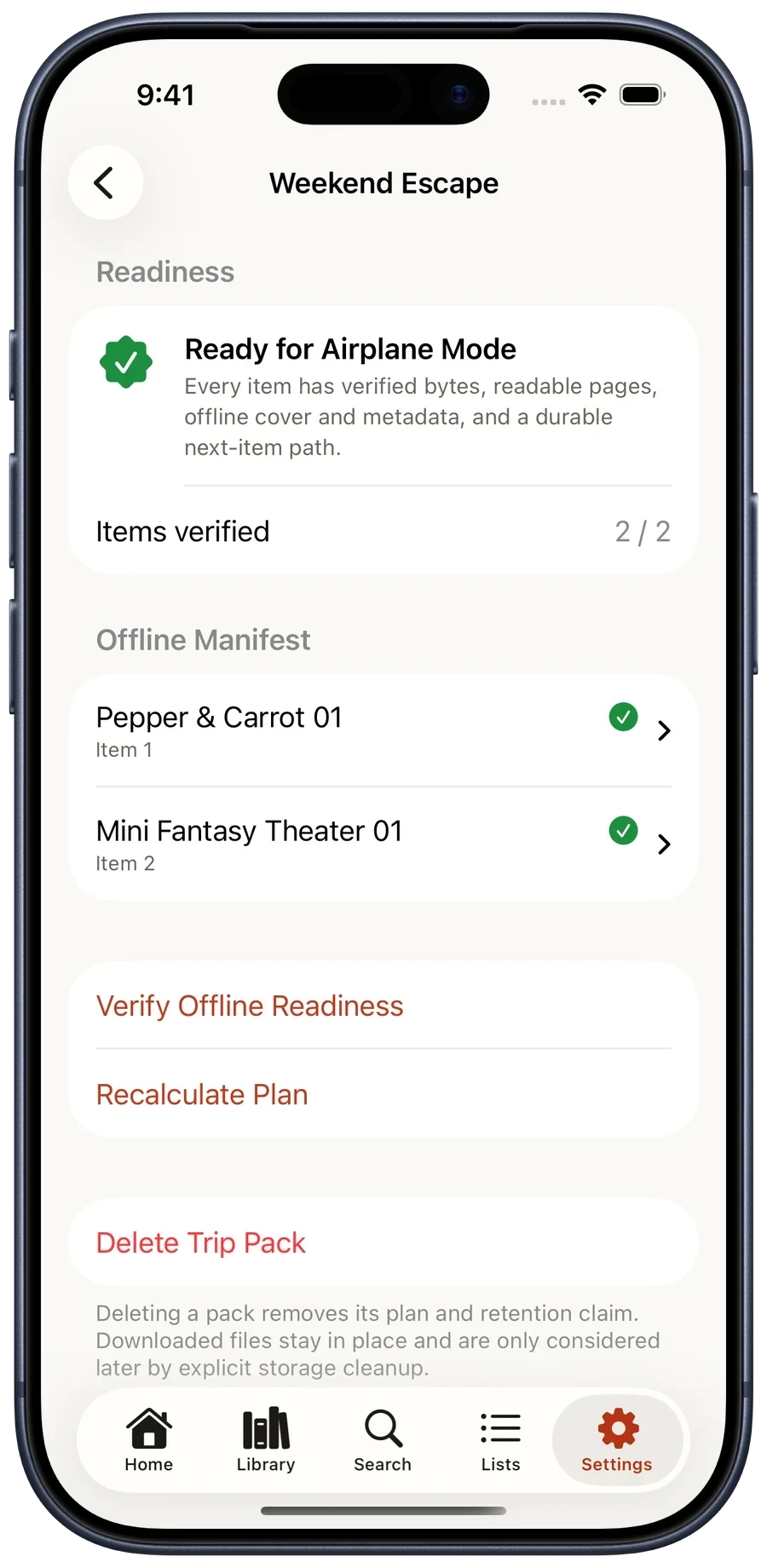
- 3Build a Trip Pack
In Settings, open Offline Travel, then Trip Packs. Name it, choose Days, Items, or Storage, pick the books, and run Verify Offline Readiness.
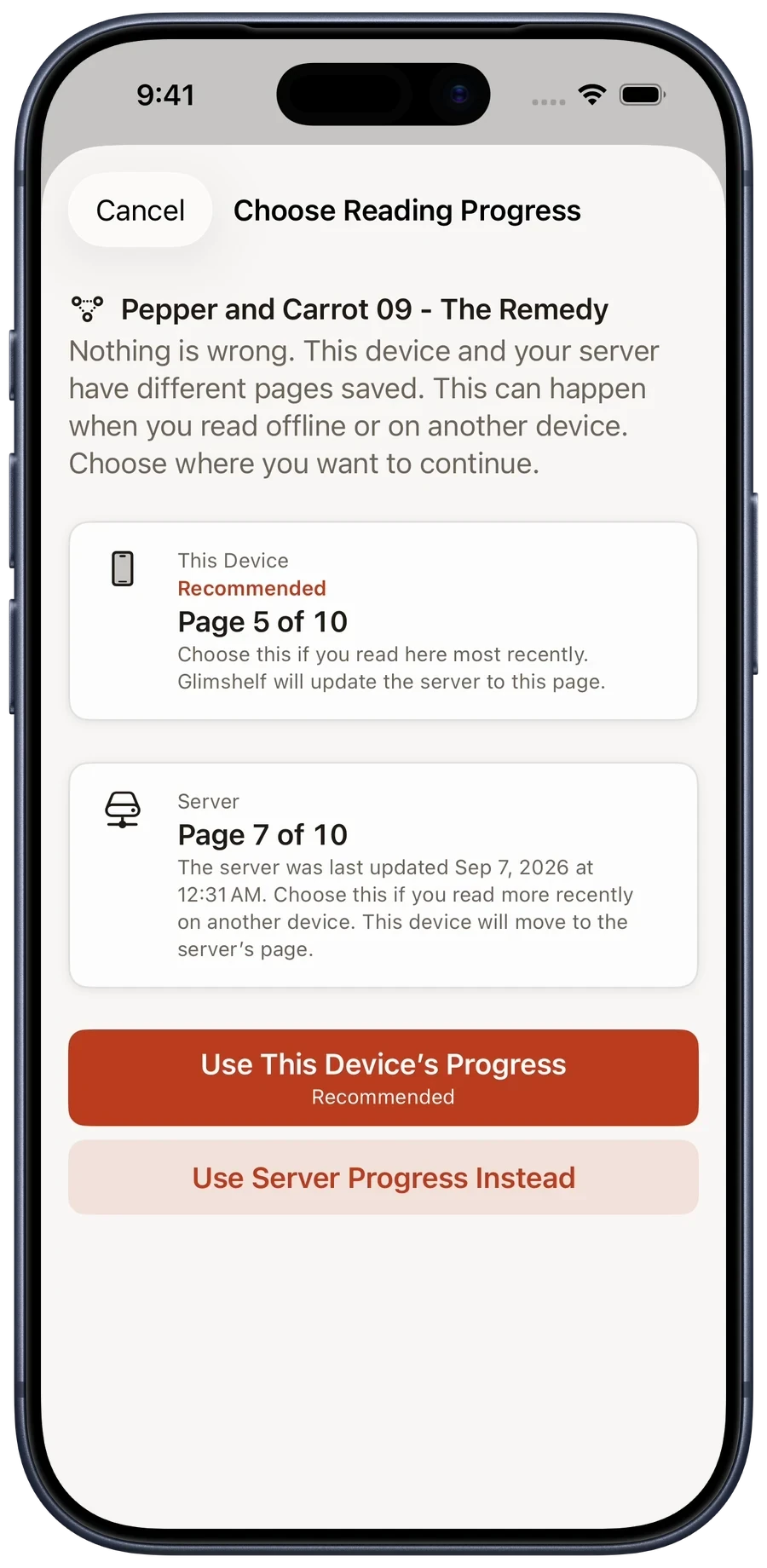
- 4Reconnect normally
Progress is saved on the device first. Queued Komga and Kavita updates resume when the source returns.
Free keeps up to five downloaded server books at a time. Books in a Trip Pack count among those five. Local files do not count, and there is no local-file title limit. Pro removes the server-download cap.
See Trip Packs and progress recovery (4)
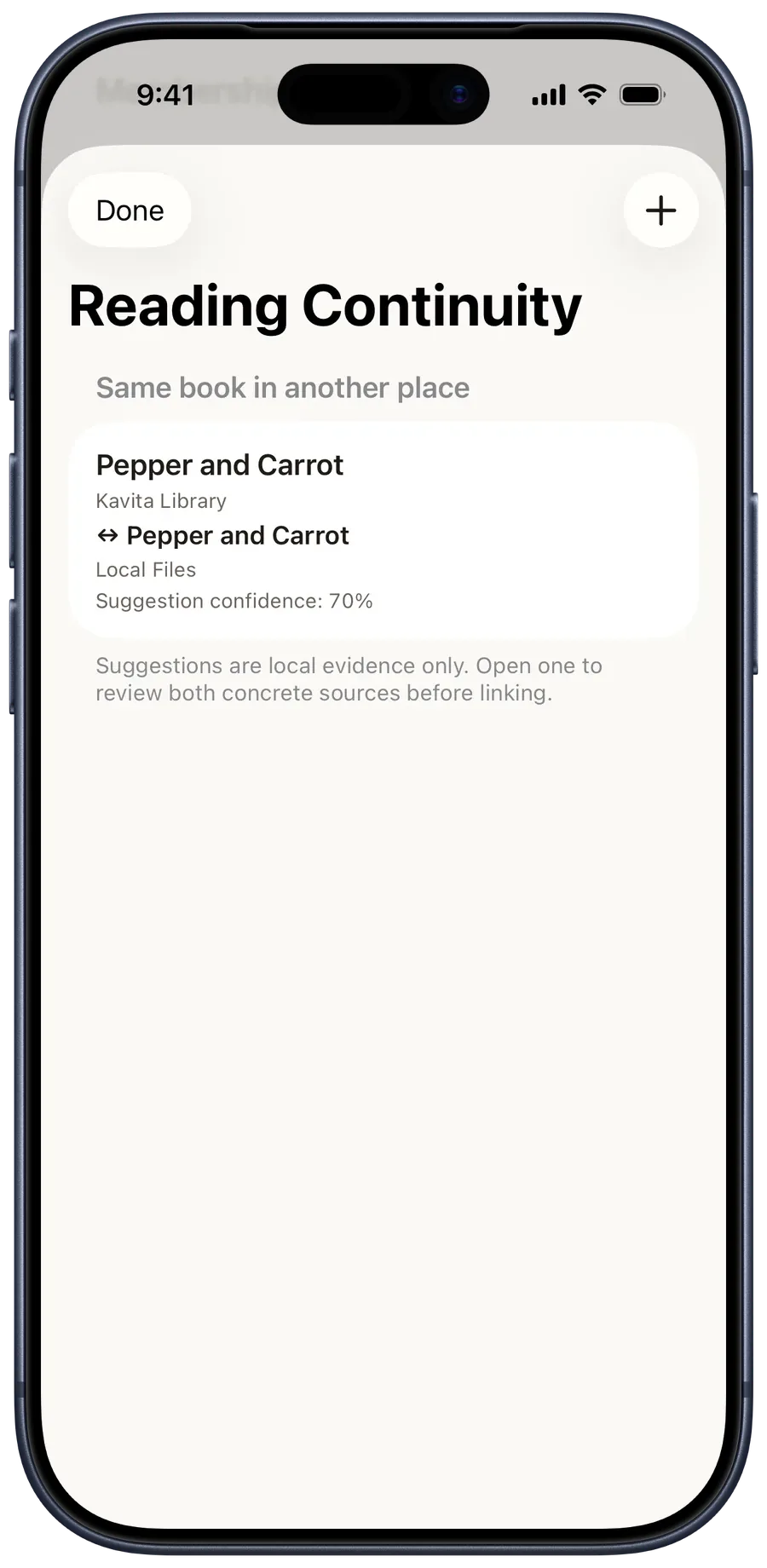
05
Organize and review
Keep useful queues in one place.
Library health and alerts
- Library HealthOpen Settings, Servers, Library Health, or use the Home ⋯ menu. Needs Attention links supported issues to their repair or review screen.
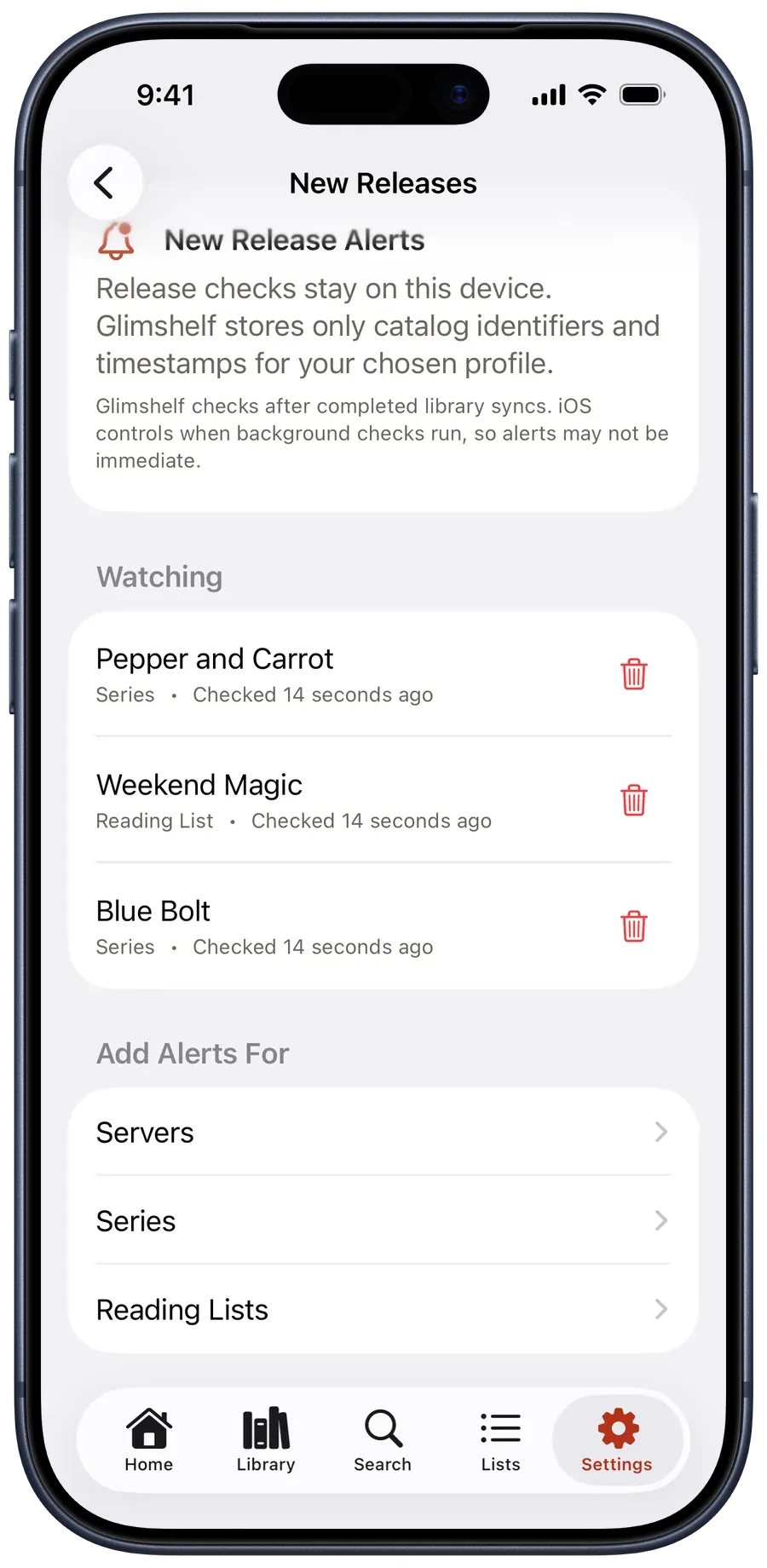
- New Release AlertsOpen New Release Alerts, then add a server, series, or reading list. After a successful catalog or reading-list check, Glimshelf schedules alerts on device; iOS controls background timing.
Lists, orders, and collections
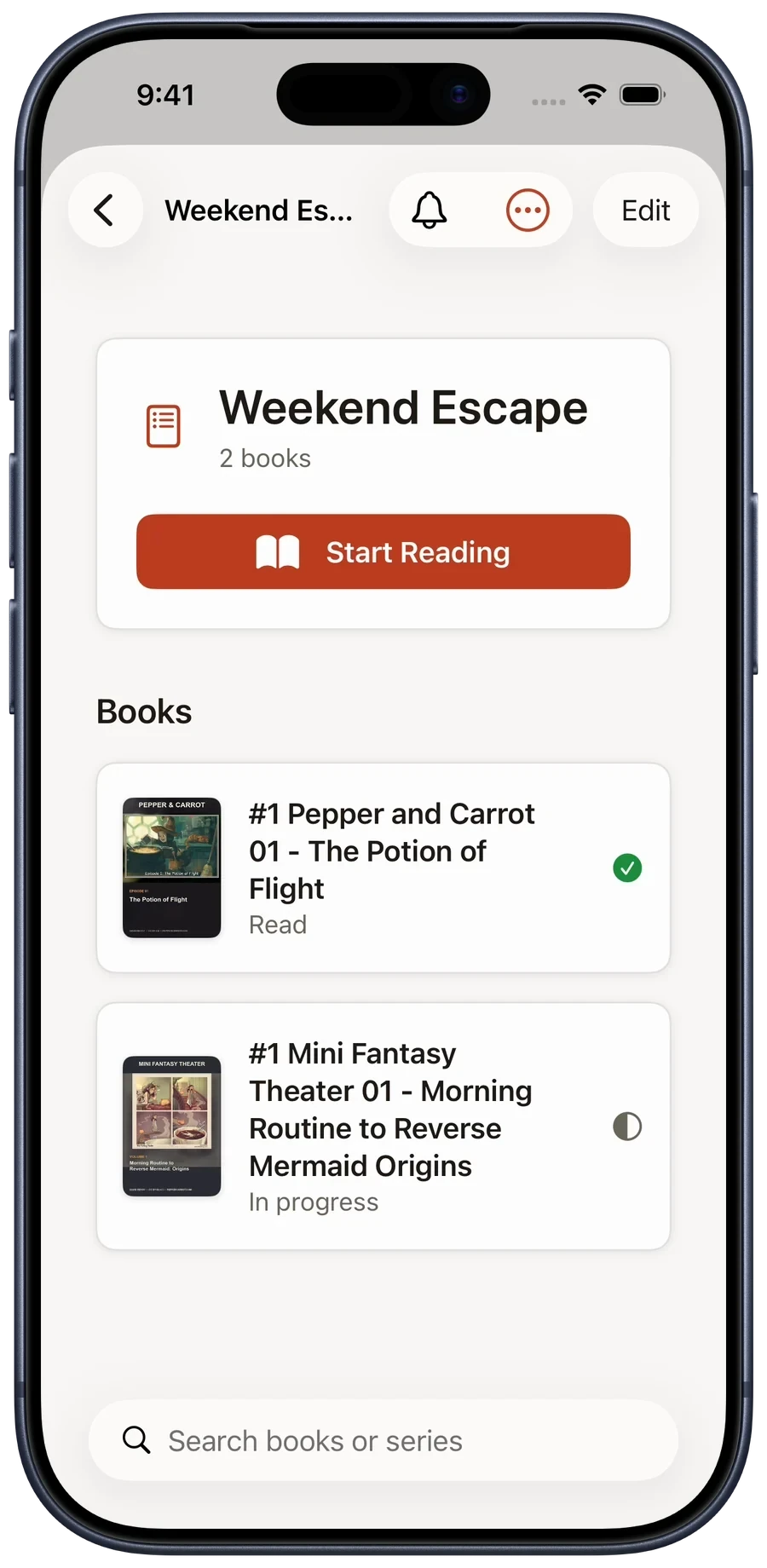
- Reading ListsServer lists retain their order and can be pinned to Home.
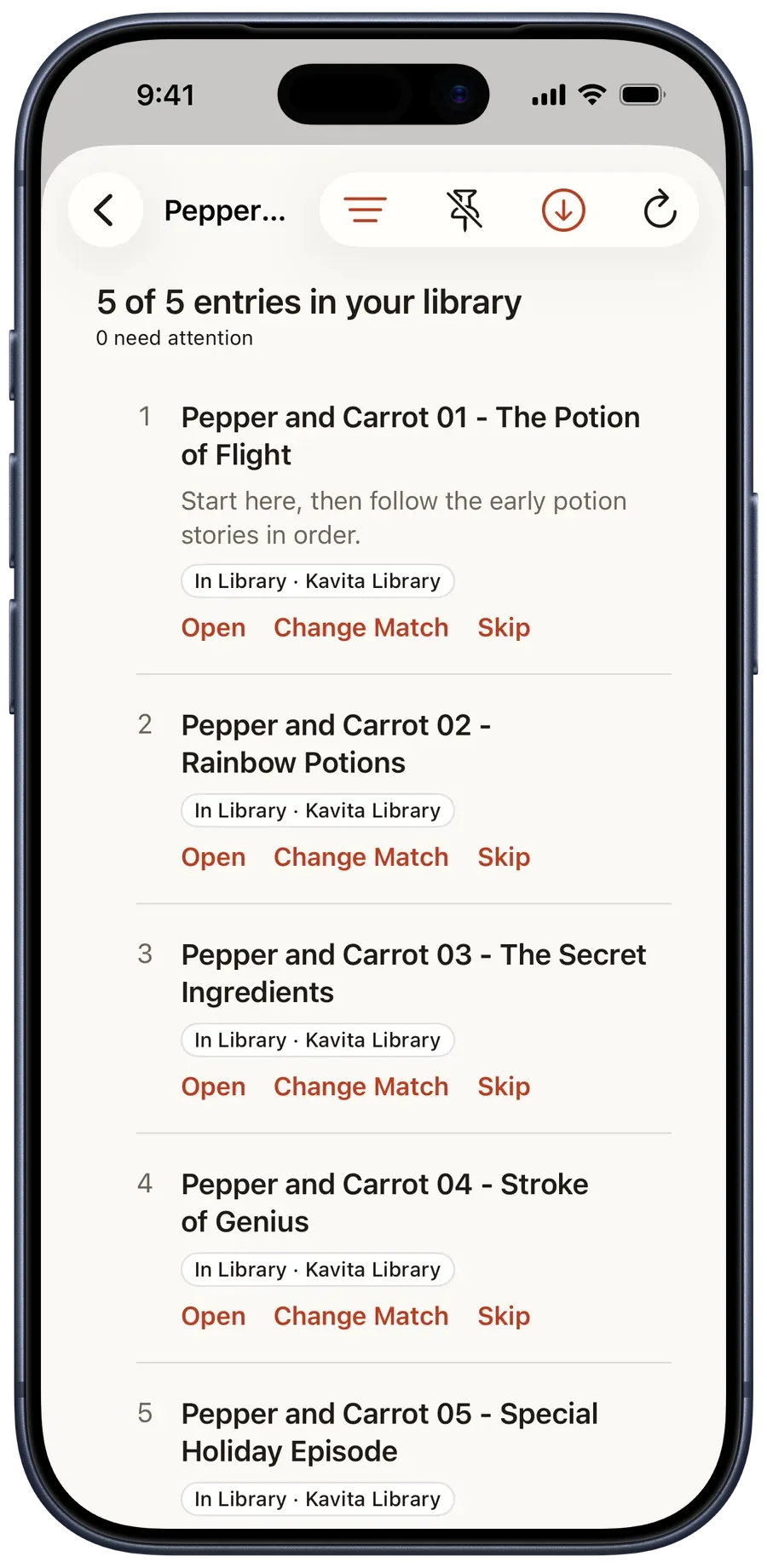
- Reading OrdersWith Pro, import a CBL or build a cross-series order. Unmatched steps stay visible, and Next Up returns to the correct entry.
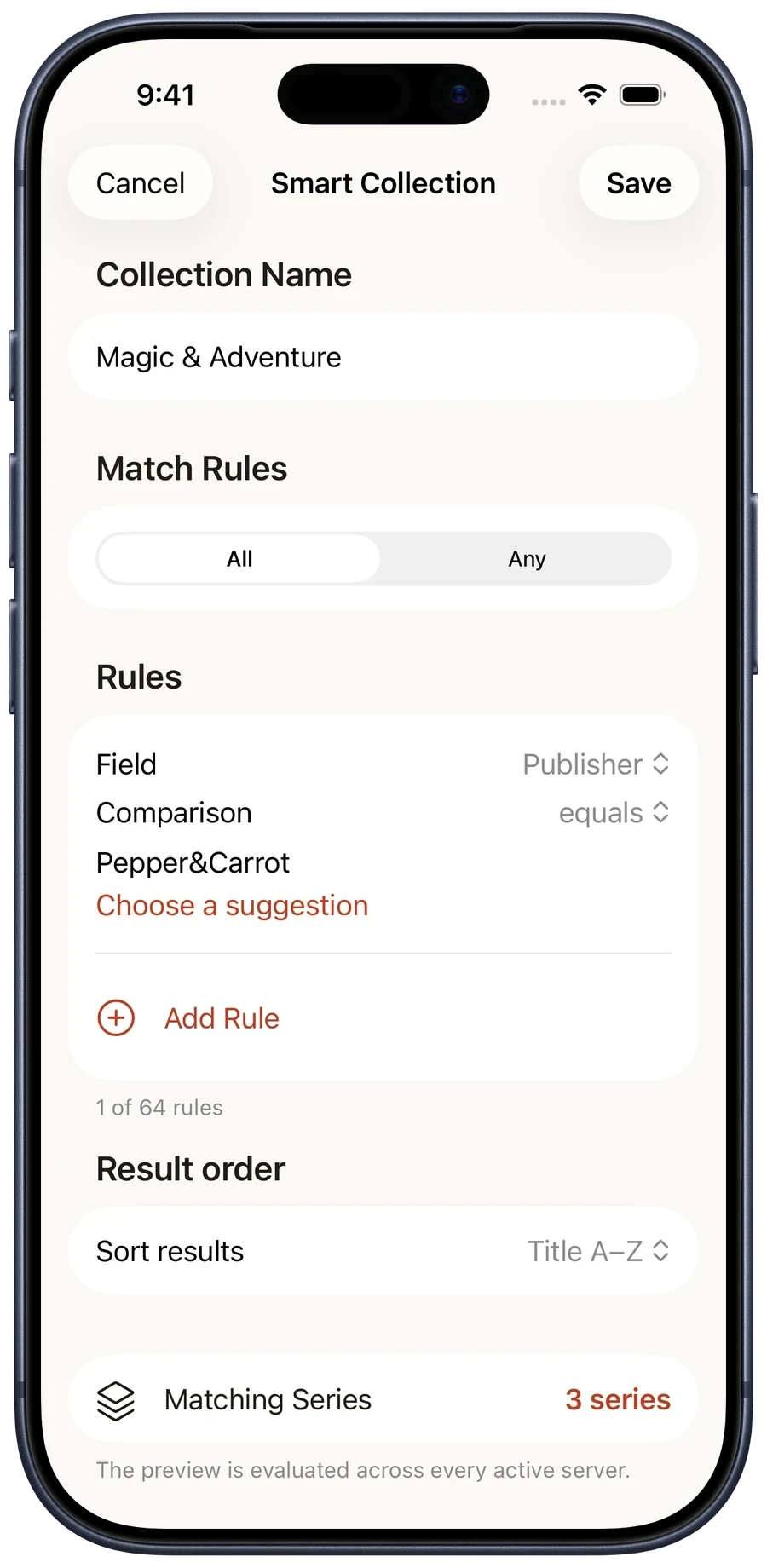
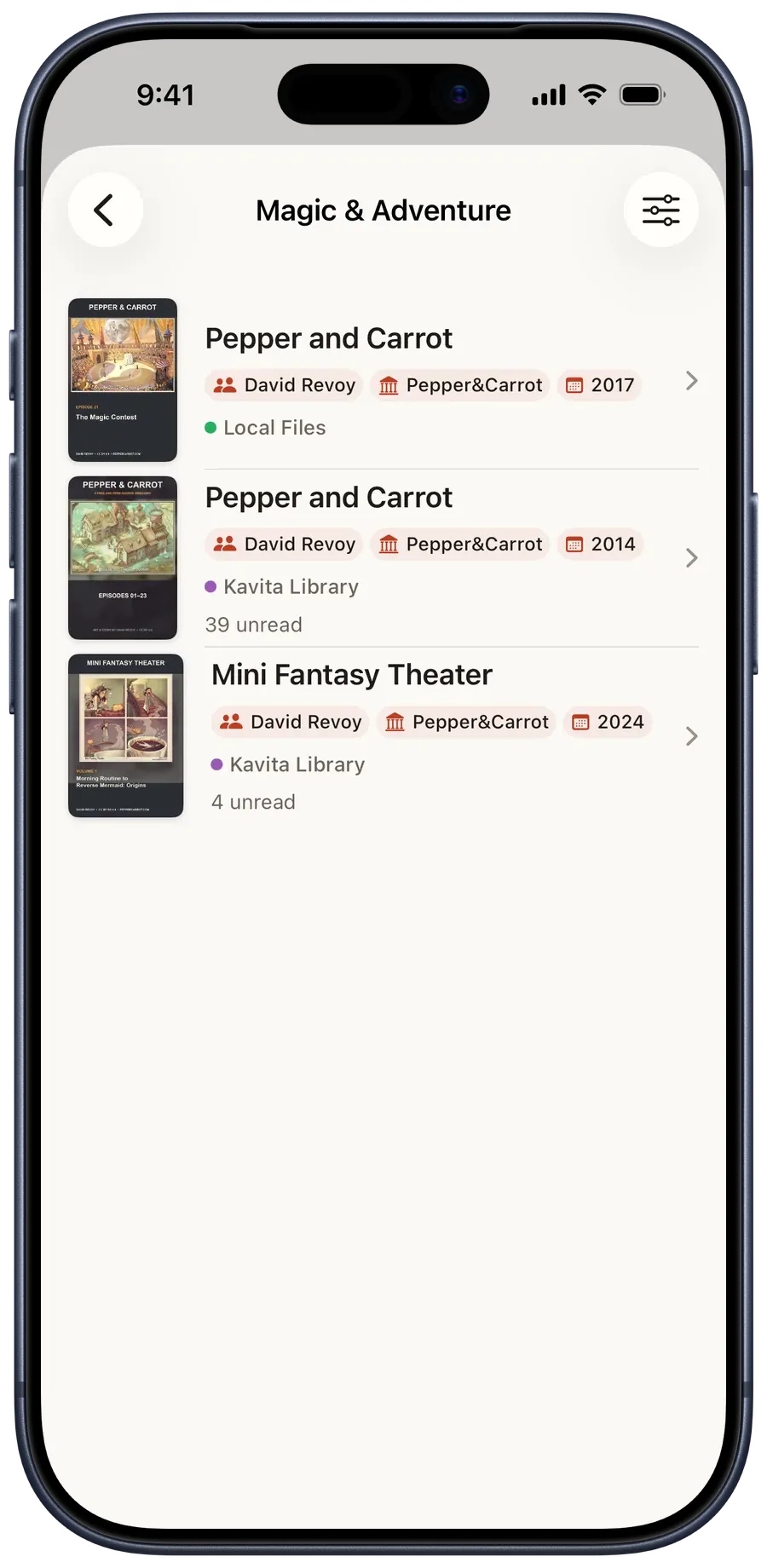
- Smart CollectionsWith Pro, define rules and match behavior; results update as the library changes.
Statistics
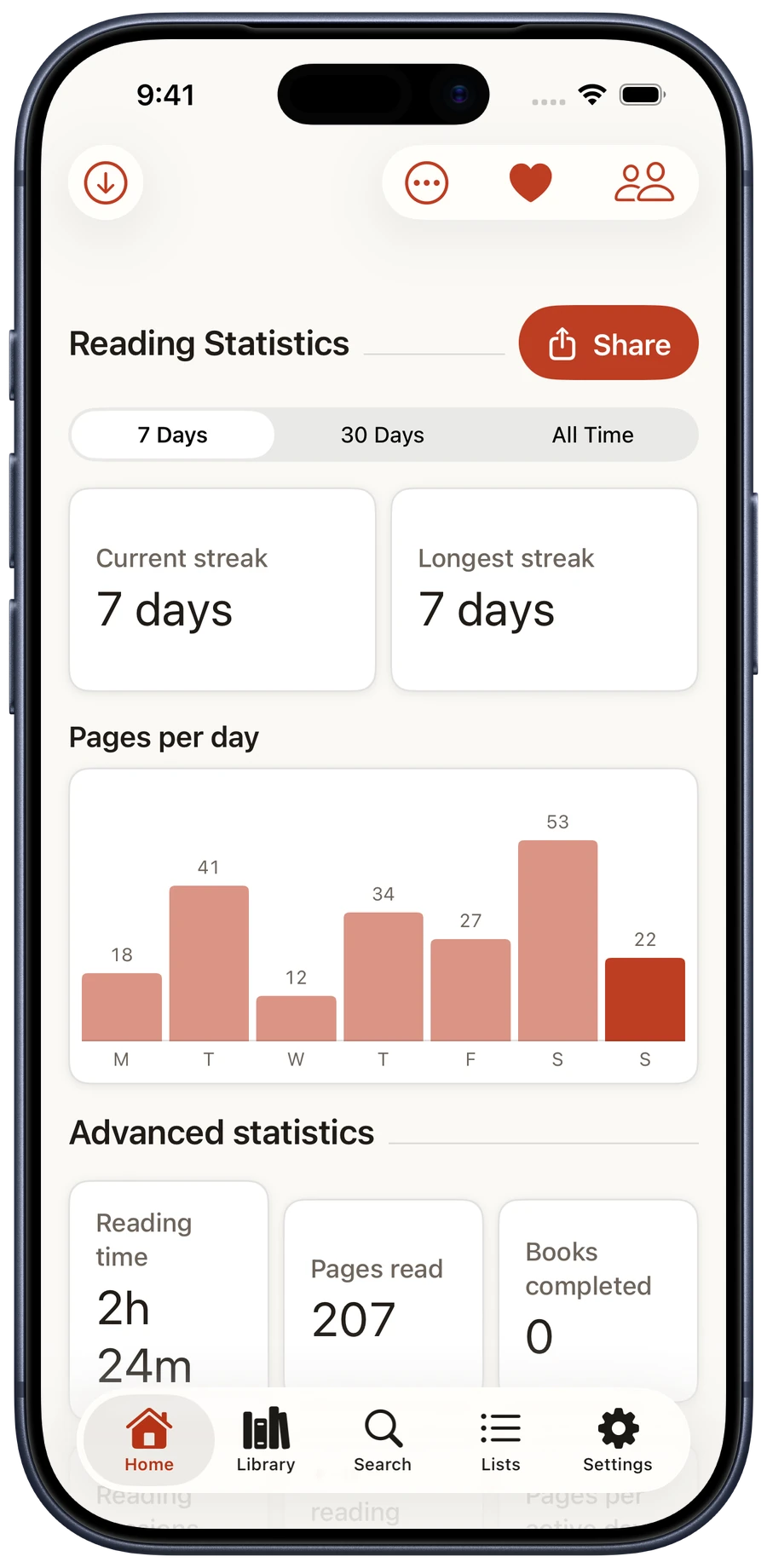
Free includes streaks and pages per day. Pro adds profile-specific reading time, sessions, pace, calendar-year statistics, yearly goals and a shareable Year in Review. Sharing happens only when requested.
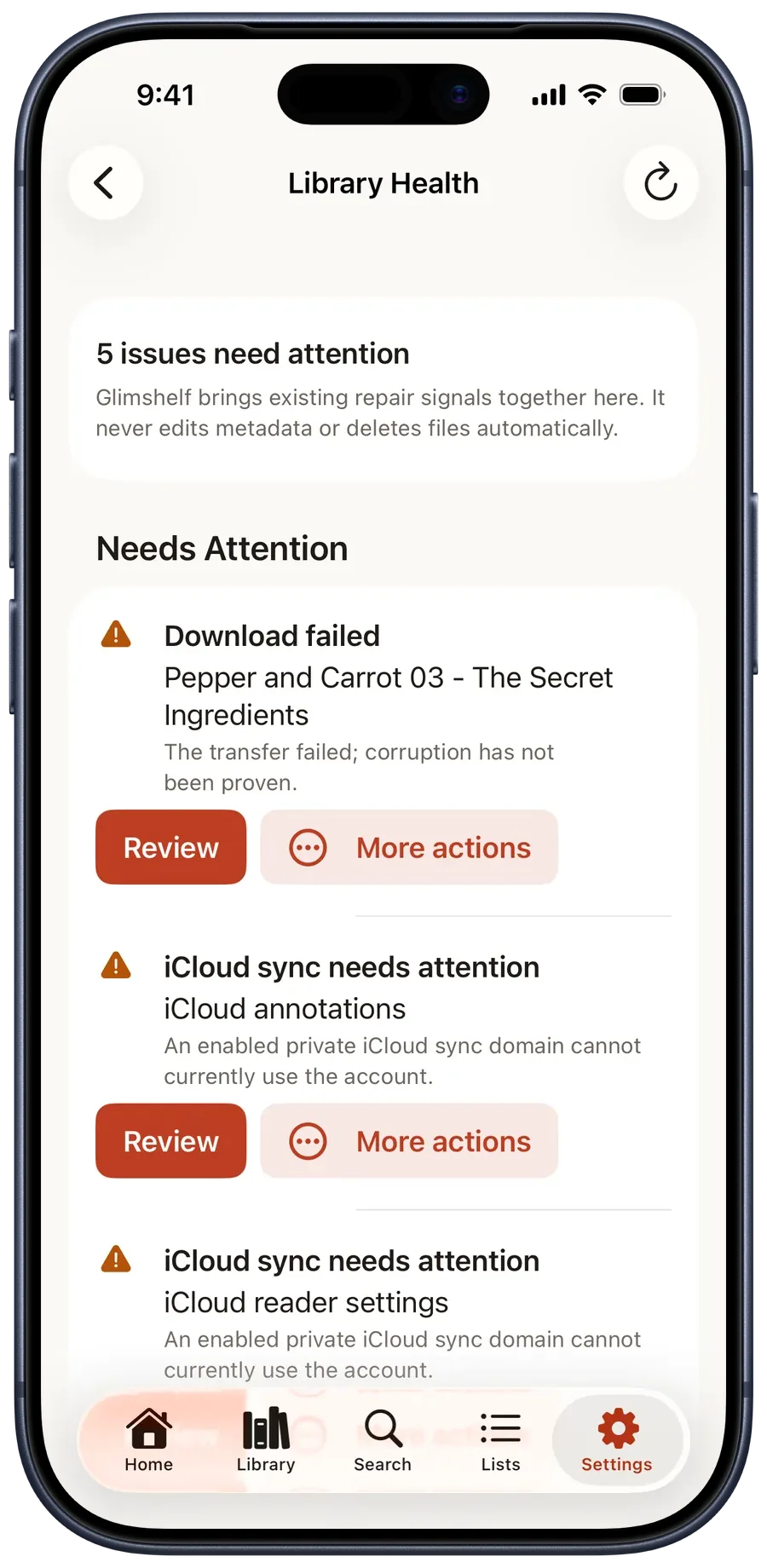
See alerts, lists, orders, collections, and statistics (6)
06
Match and connect
Review every match before applying it.
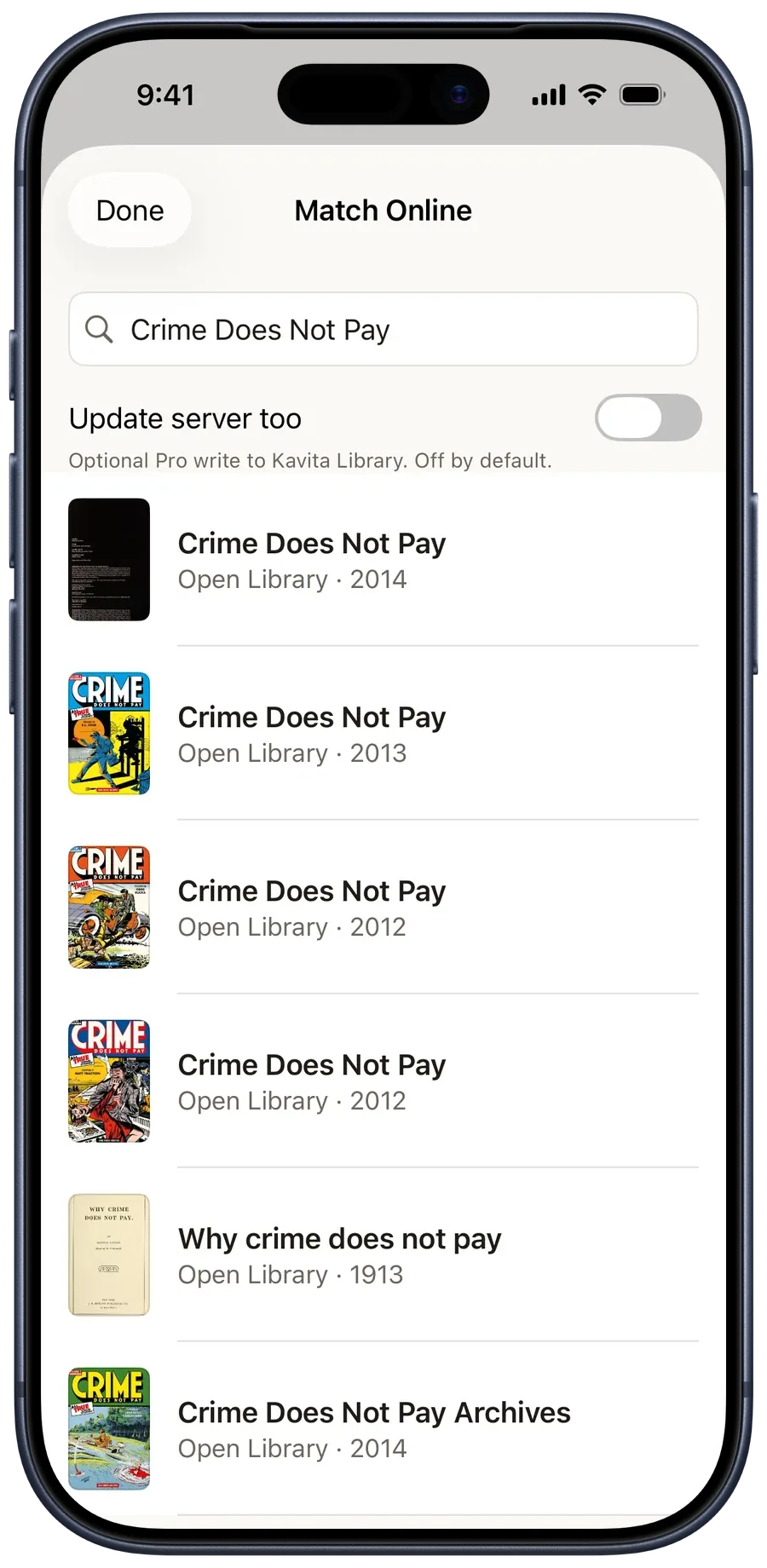
- 1Open Match Online
Use the ⋯ menu on the series or book you want to correct.
- 2Compare the record
Check title, year, format, edition, and cover. A highly ranked result is still only a candidate.
- 3Apply or leave it unchanged
Choose the intended record, or leave without applying when none is right. Compatible server permissions decide which edits can be written back.
Tracking and profiles
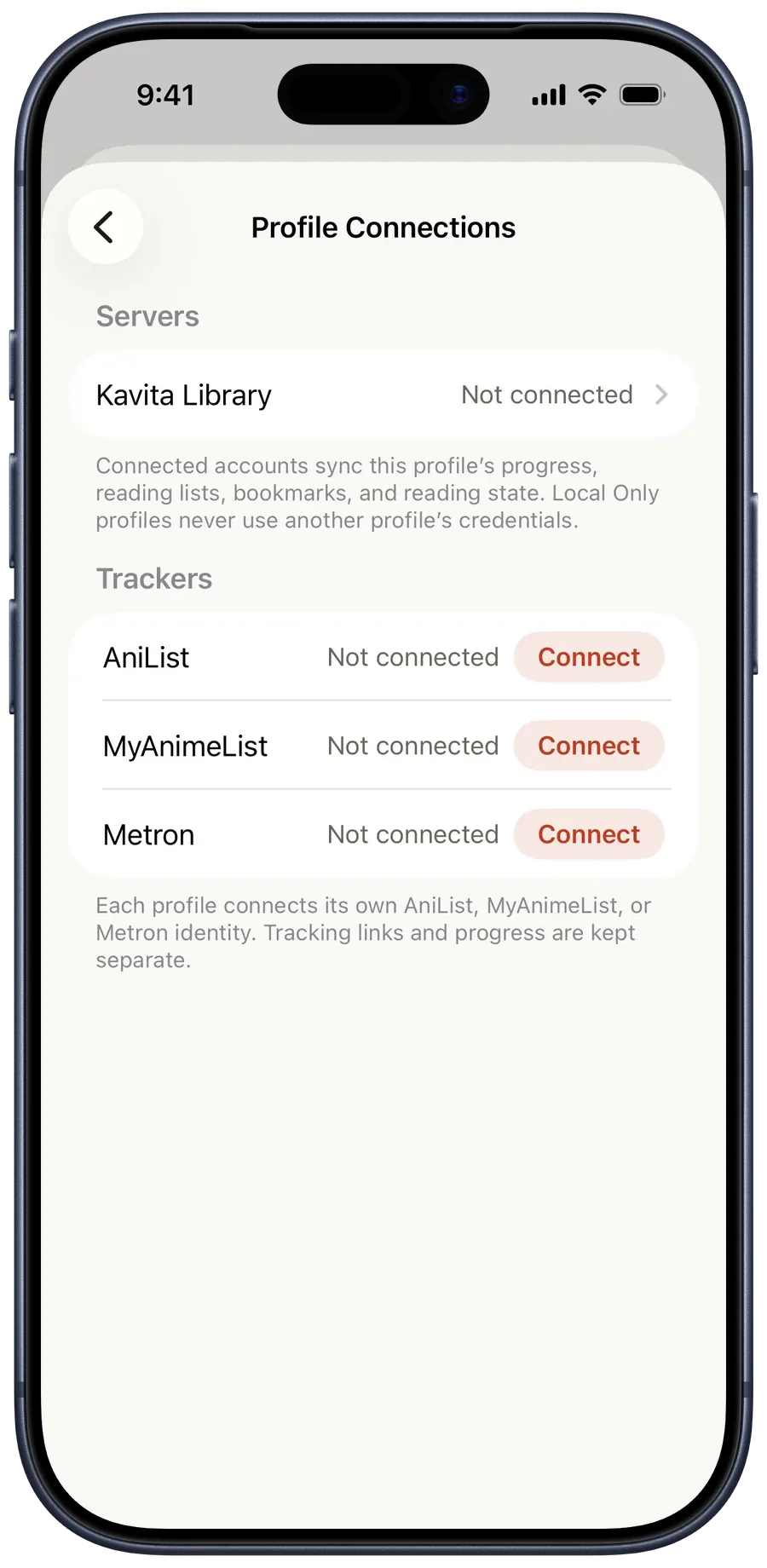
- Set up optional trackingWith Pro, open a reader profile and connect AniList, MyAnimeList, or Metron. The account-setup screen shown below is still unlinked.
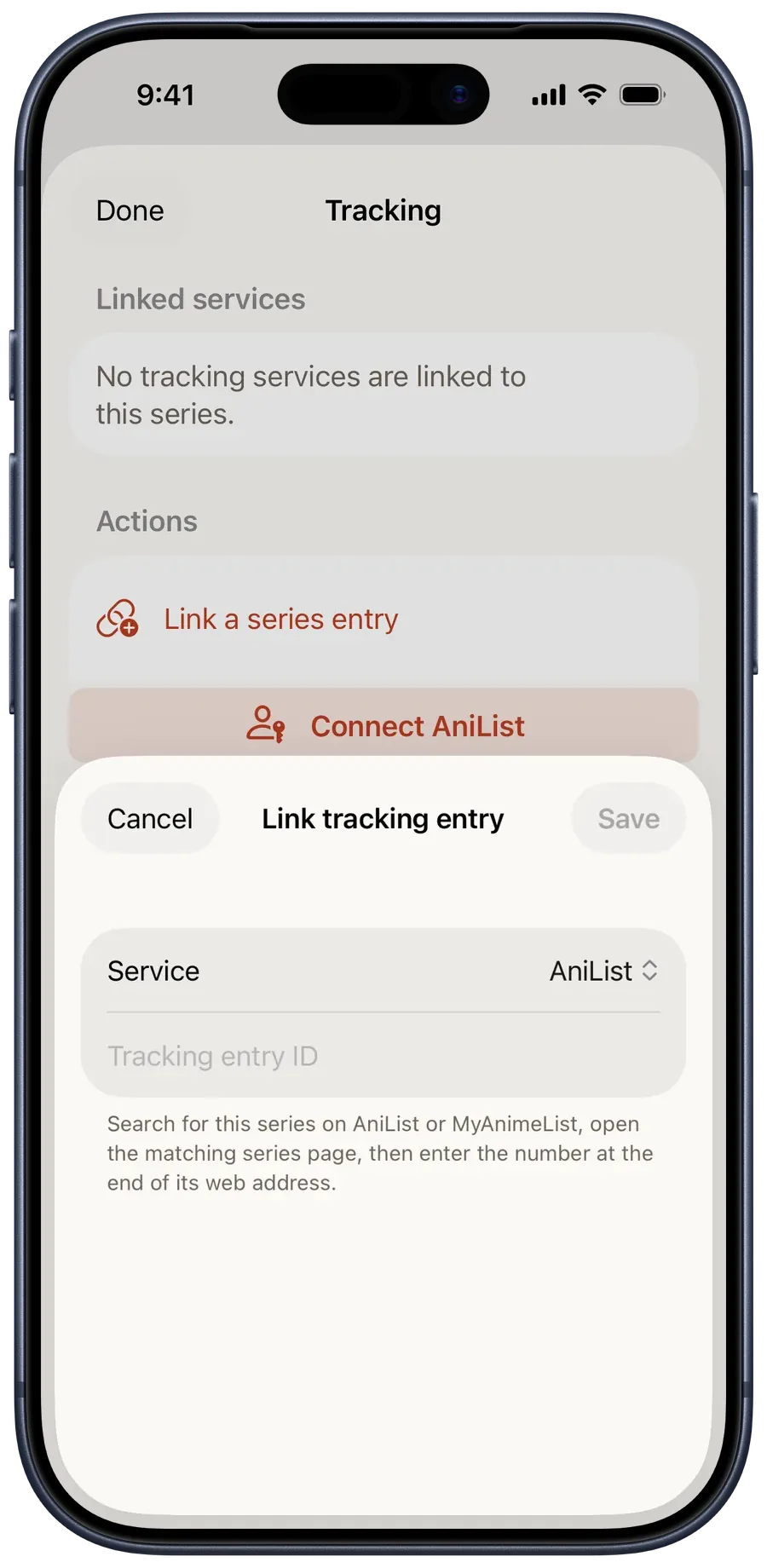
- Link a seriesAfter connecting a tracking service, open Tracking on the series, choose that service, and enter its title ID. The example below shows the empty setup form.
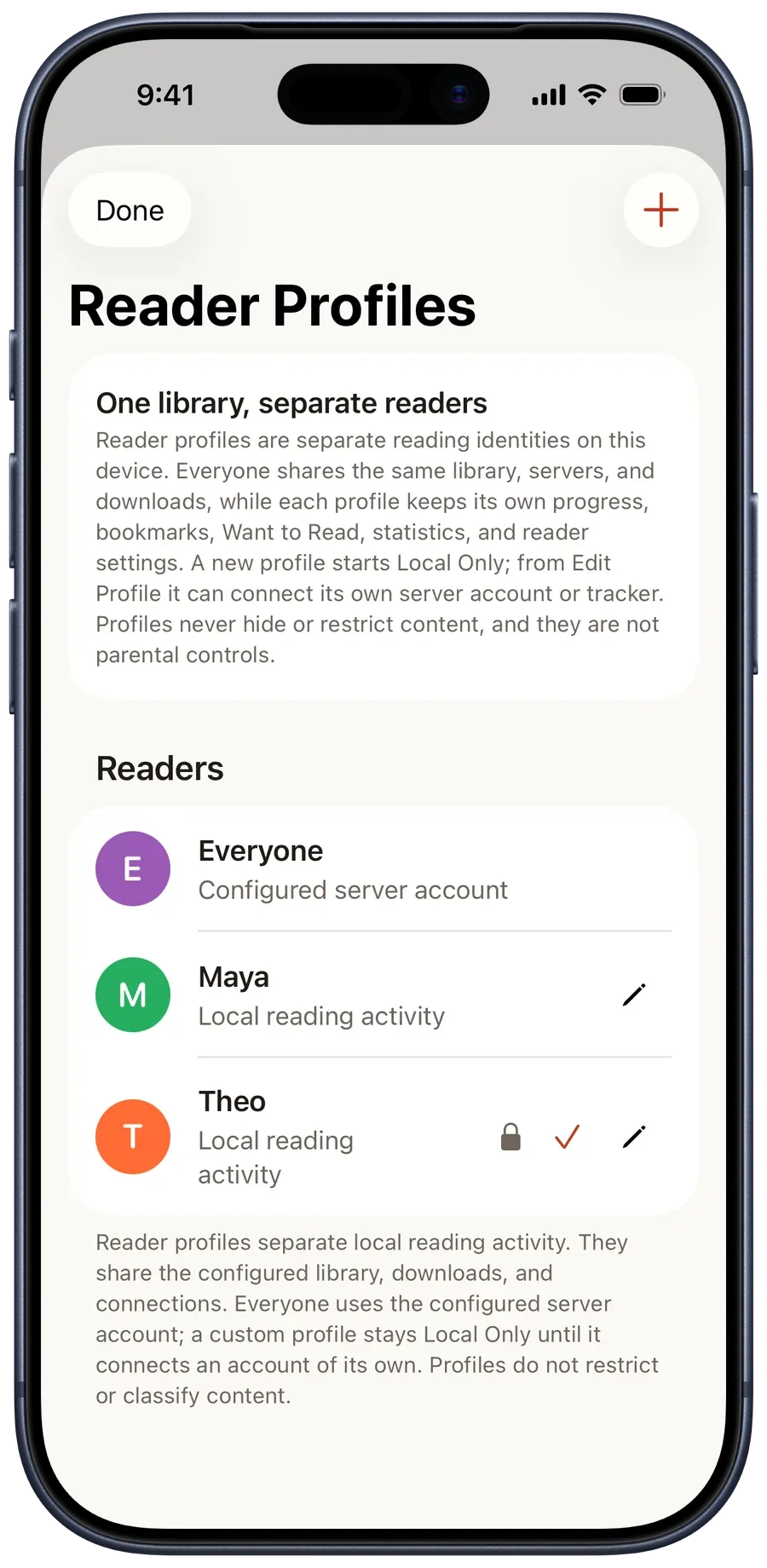
- Reader profilesProfiles keep progress, bookmarks, preferences, statistics, and optional service accounts separate. An unbound profile remains Local Only.
See profiles and tracking (3)
07
Privacy and backup
Know where the app sends data.
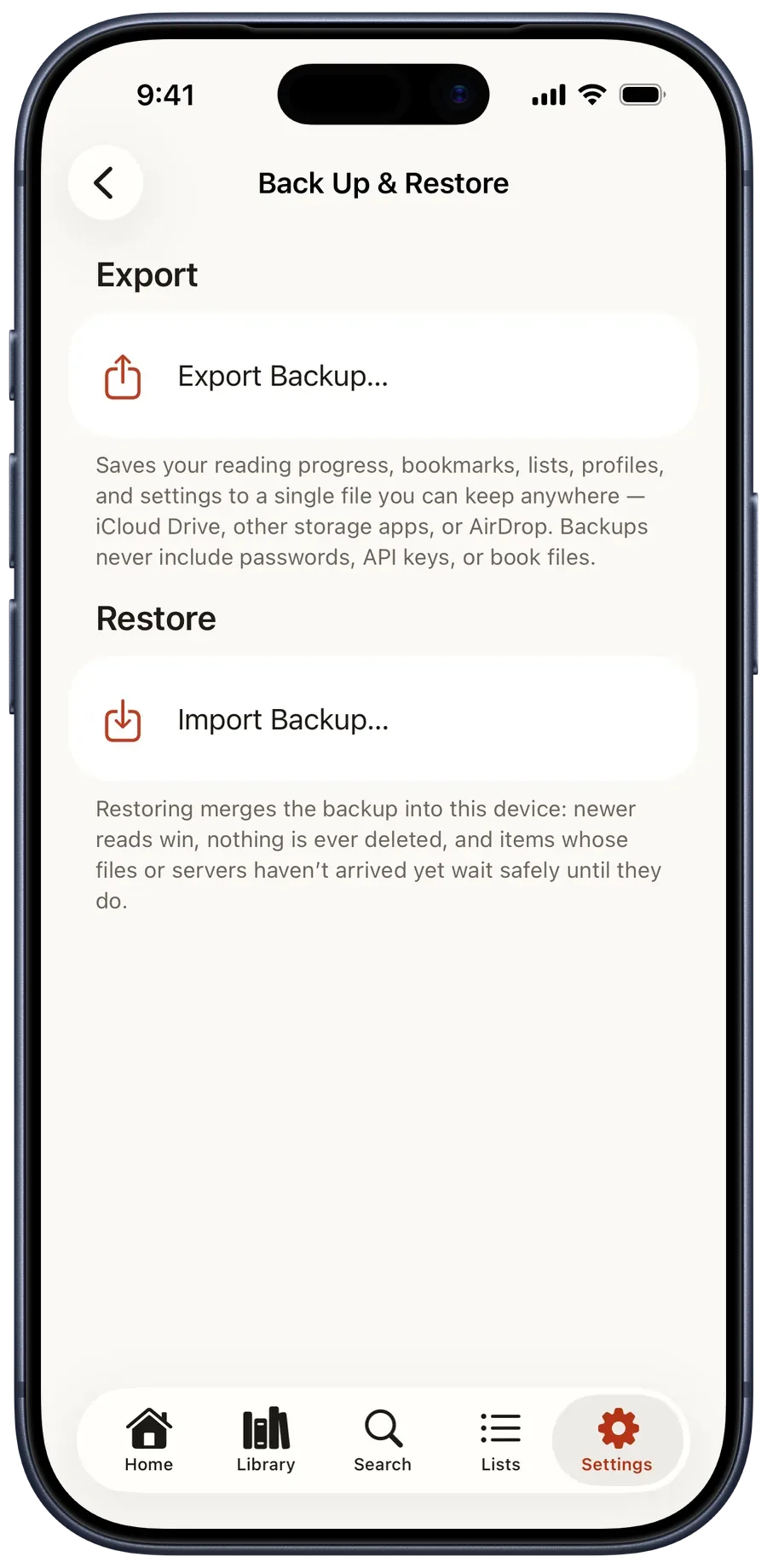
Glimshelf has no developer-operated account or library relay. The app connects directly to sources and optional services you choose. It does not automatically send the developer your library, reading history, notes, credentials, or diagnostics.
- CredentialsServer credentials and service tokens stay in Keychain.
- Profile protectionFree can require Face ID, Touch ID, or the device passcode before a profile opens.
- Portable backupFree can export one backup through Files. Import previews a merge and does not erase newer data; keep the original until verified.
- Private iCloud featuresWhen enabled, Pro uses your iCloud account for annotations, local-file progress, preferences, and statistics.
See server security controls
08
Fix a connection
Start with the first failed stage.
- DNSCheck the host name, local DNS, VPN, and whether the address opens on this device.
- PortCheck the port number, firewall, reverse proxy, or tunnel.
- TLSCheck certificate validity, host-name coverage, and the certificate presented by the proxy.
- AuthenticationRe-enter or recreate the credential on the server.
- APIConfirm server type, supported version, base path, and account permissions.
Share the failed stage and its message. Do not post passwords, API keys, private server addresses, or certificate fingerprints.
09
Share feedback
How did reading feel?
After a few pages, tell us what felt comfortable and what got in your way. A sentence or two is enough, even if everything worked. Email support@glimshelf.com; no diagnostic attachment is needed for general feedback.
A bug, confusing screen, wrong result, or missing convenience is useful beta feedback. Include what you tried, what you expected, what happened, and whether it repeats.
Our Nimblor Discord community has public Glimshelf channels for questions, bug reports, ideas, and beta feedback. Include your app version, device, and iOS or iPadOS version when asking for help. Community posts are visible to other members; send diagnostic files and private details through email after reviewing them. Discord is optional, and replies may take time.
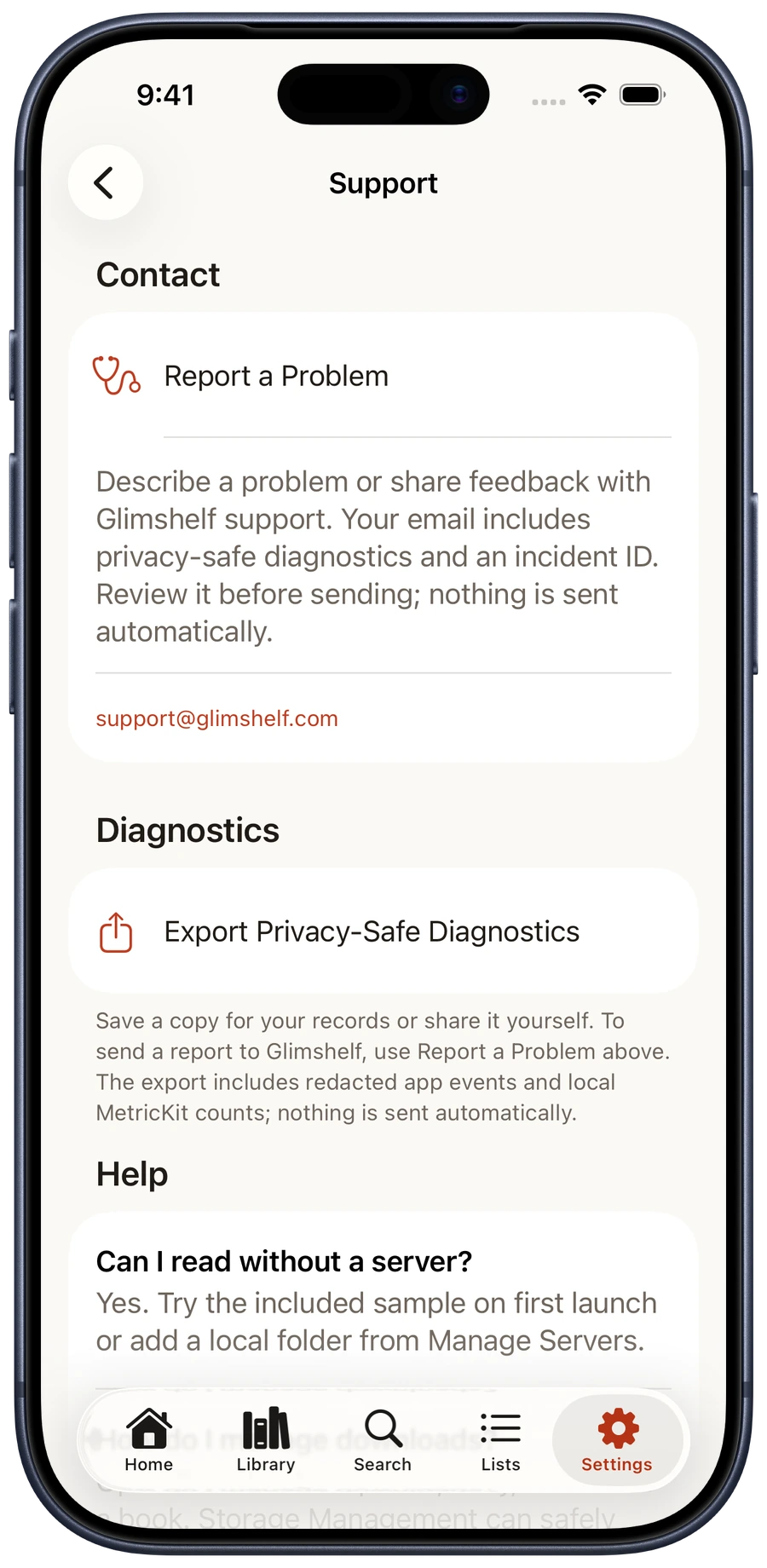
- 1Open Settings, Support
Choose Report a Problem. Glimshelf prepares a message to support@glimshelf.com with an incident ID and diagnostic attachment.
- 2Review it before sending
Check the recipient, your message, and the attachment. Nothing is sent automatically.
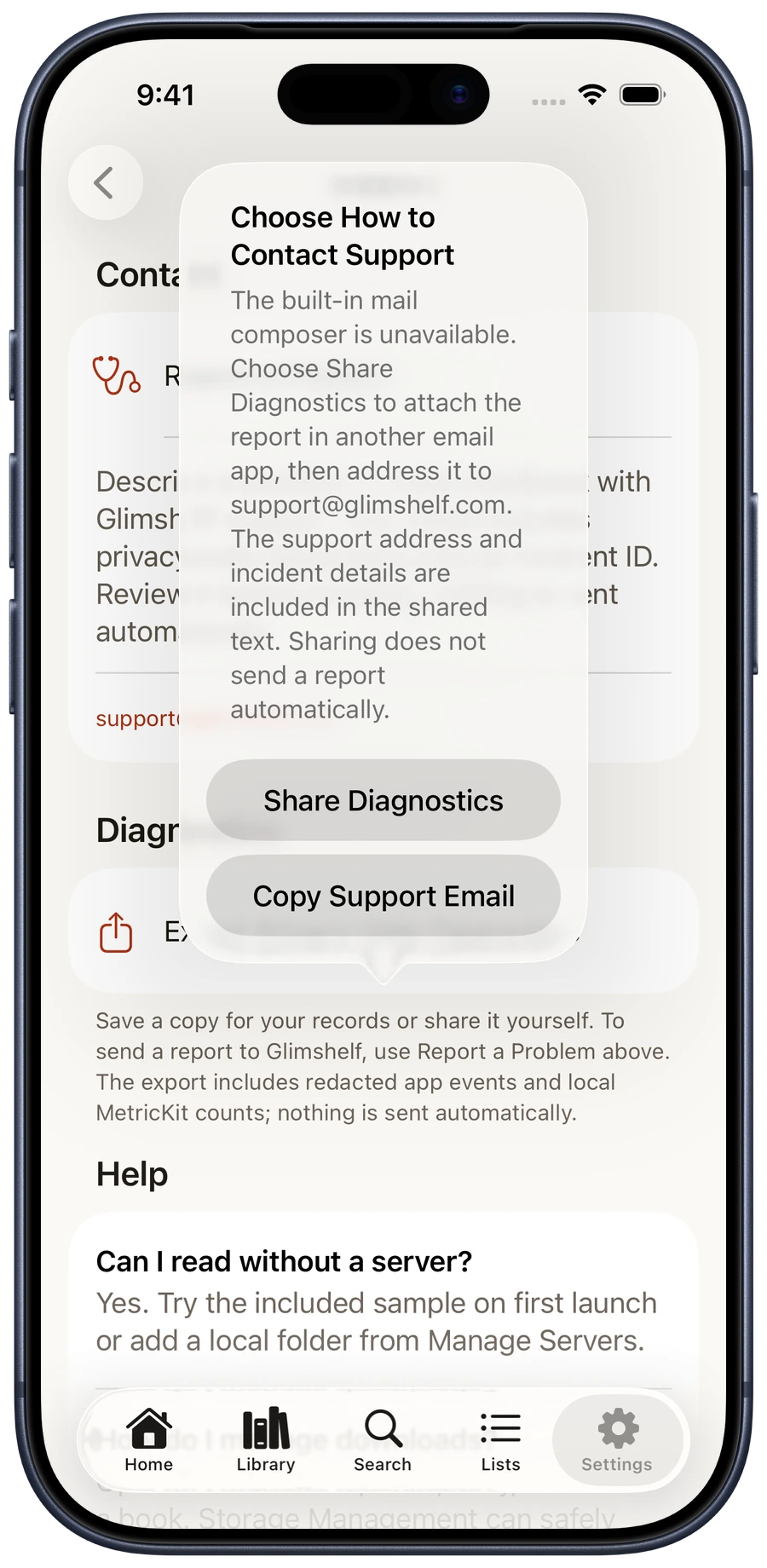
- 3Use the fallback when Mail is unavailable
Choose Share Diagnostics, then send the file with an app you use for mail. Copy Support Email copies the address; the share sheet does not fill it in.
Open Glimshelf in TestFlight and choose Send Beta Feedback, or use Share Beta Feedback from an iOS screenshot. Remove private filenames, titles, page images, account identifiers, server addresses, and credentials first.
You can also write to support@glimshelf.com.